Lab 1.6 - Implement Rate Limiting
The API Protection Profile allows a BIG-IP administrator to throttle the amount of connections to an API through the use of Key Names.
Task 1 - Test pre-rate limiting Access
From Postman, Select the request JWT-Retrieve User Attributes
Click Save, so the current token is saved as part of the API request.

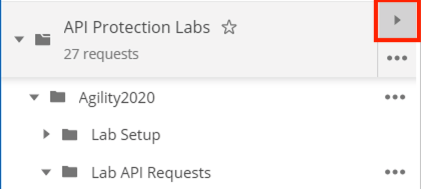
Click the arrow located to the right of the API Portection labs Collection.
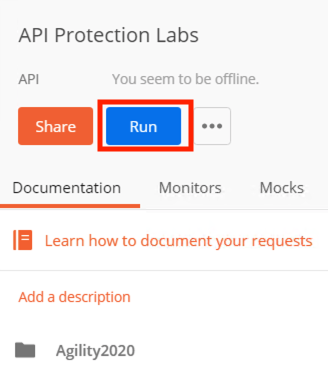
Click Run
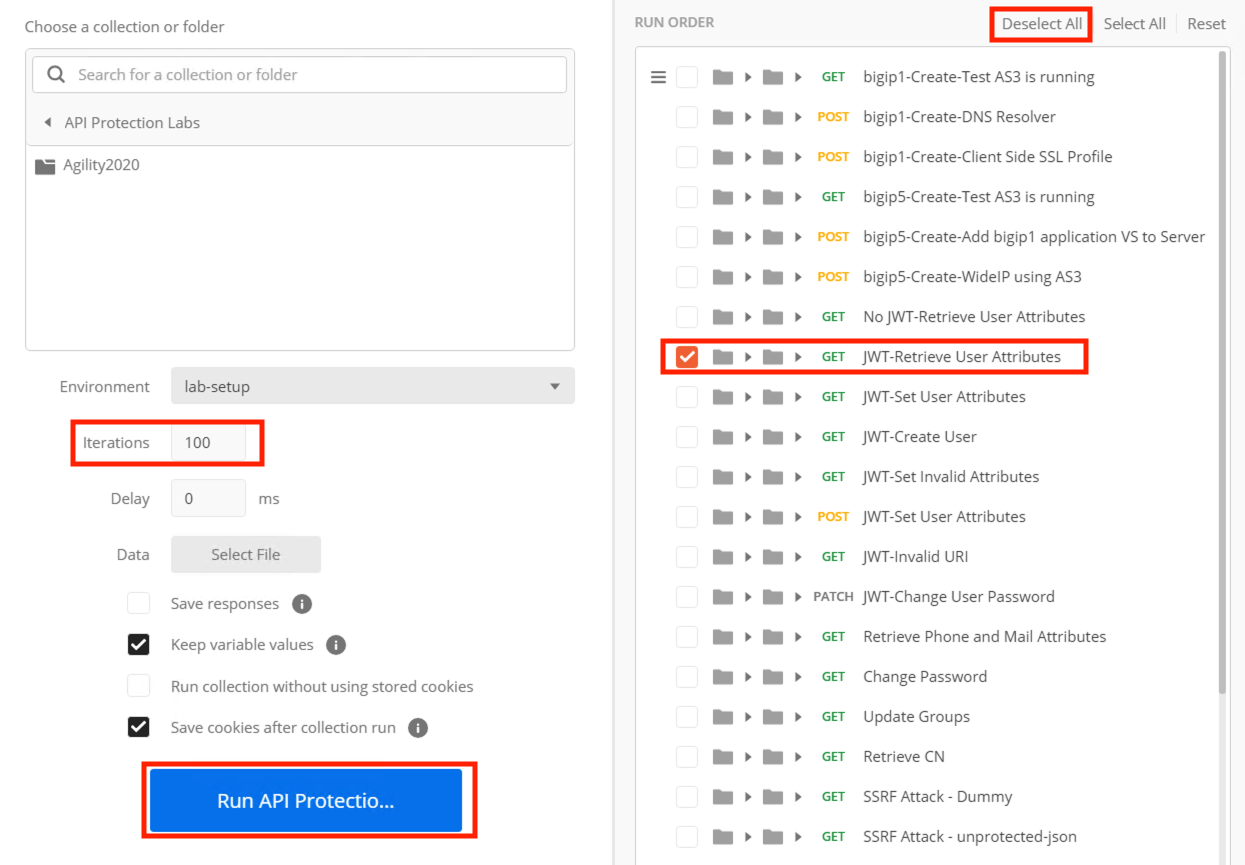
Deselect all requests except JWT-Retrieve User Attributes
Set the iterations to 100
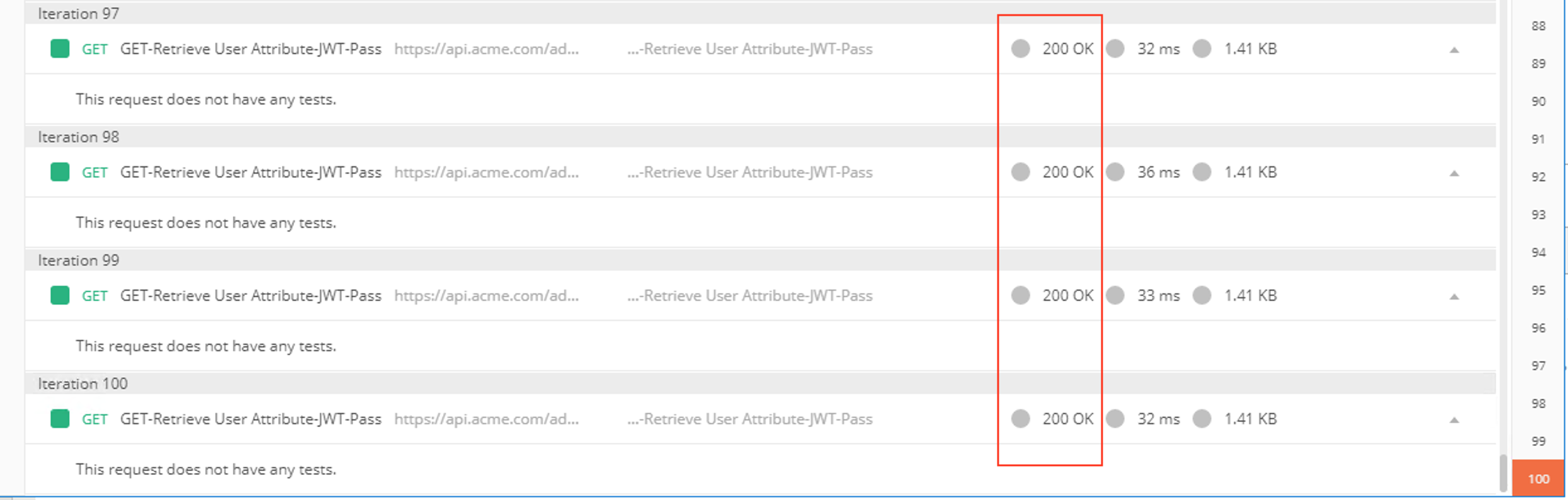
Click Run API Protection
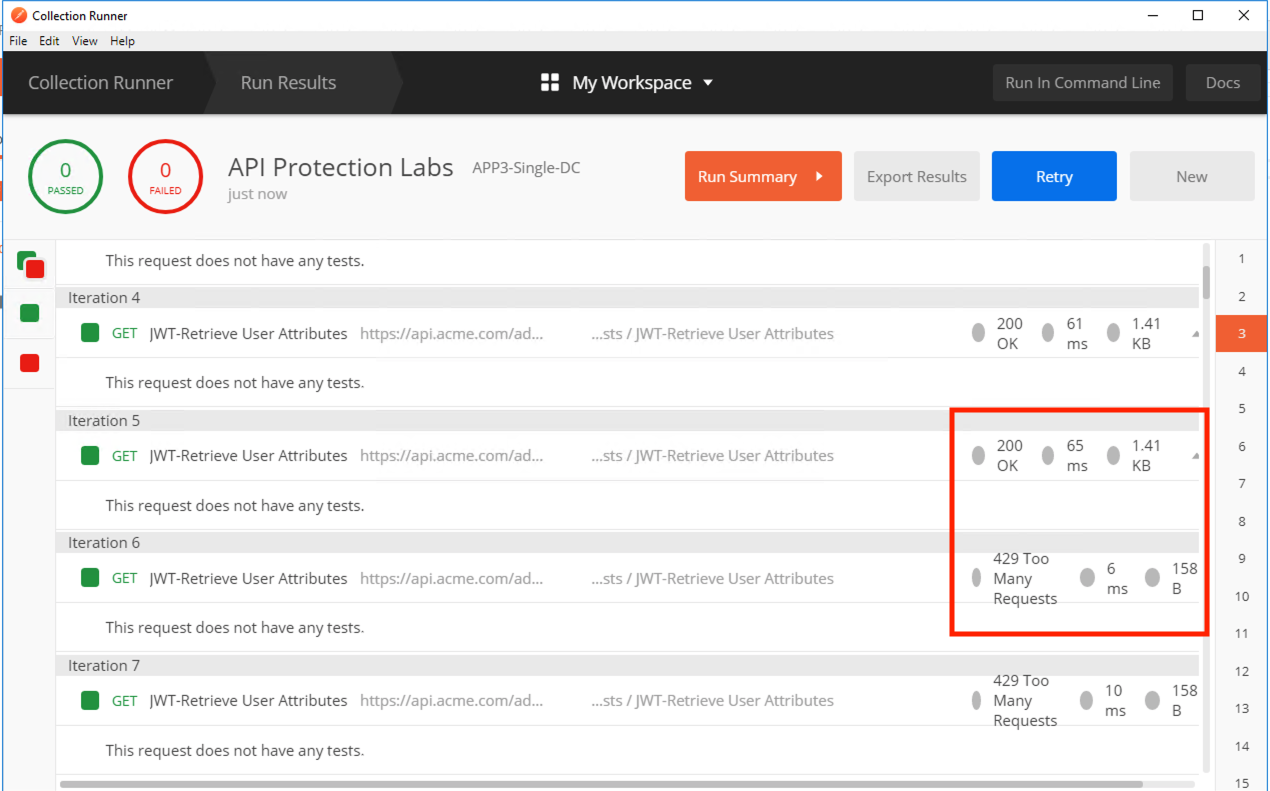
You receive a 200 OK for every request. Leave Runner open
Task 2 - Define the rate limiting keys
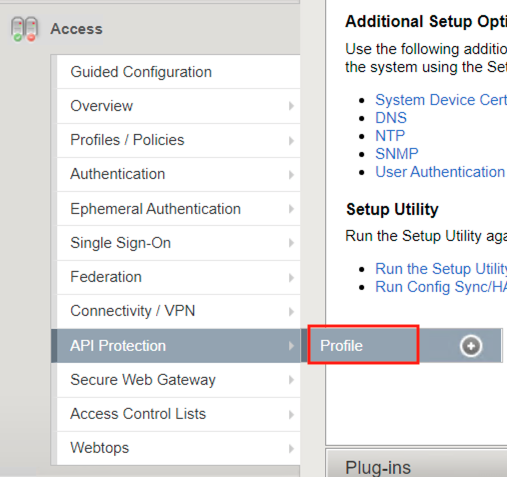
Navigate to API Protection >> Profile. Click Profile to modify the previously created API protection Profile. Not the + Plus symbol.
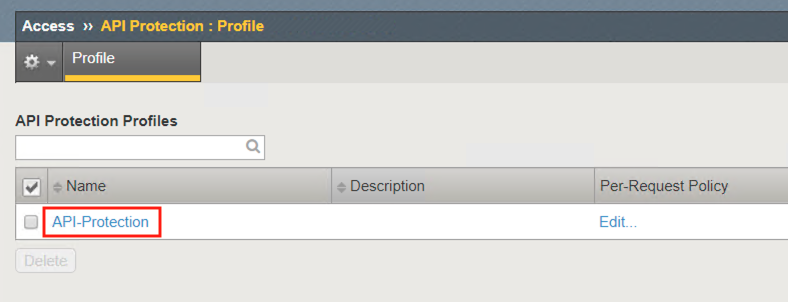
Click api-protection
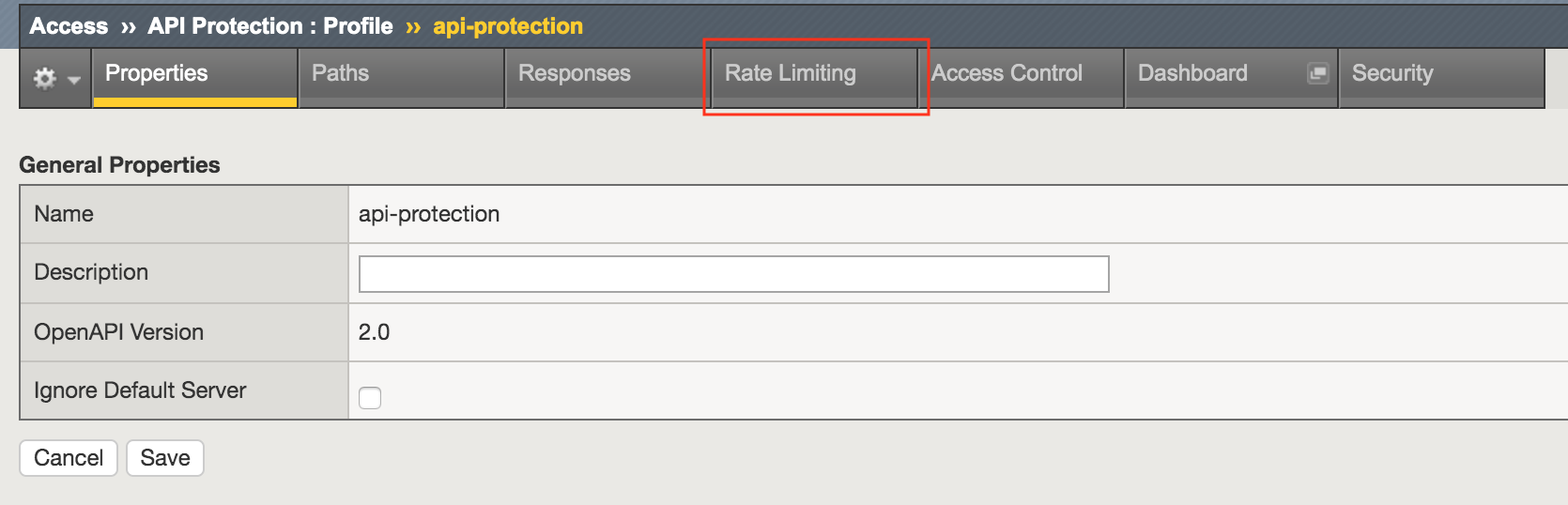
Click Rate Limiting from the top ribbon
Note
The API protection profile default settings contains five Key Names created, but their values are empty. Additional Keys can be created if necessary
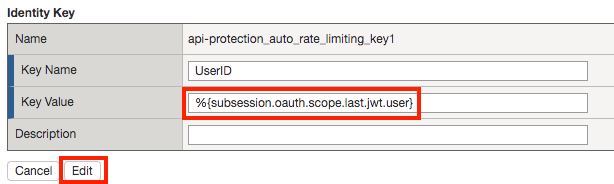
Click api-protection_auto_rate_limiting_key1

Enter the Key Value %{subsession.oauth.scope.last.jwt.user}
Click Edit
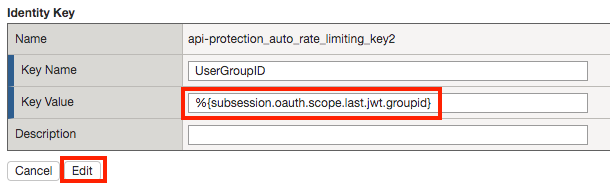
Click api-protection_auto_rate_limiting_key2
Enter the Key Value %{subsession.oauth.scope.last.jwt.groupid}
Click Edit
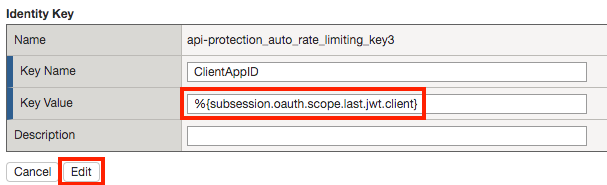
Click api-protection_auto_rate_limiting_key3
Enter the Key Value %{subsession.oauth.scope.last.jwt.client}
Click Edit
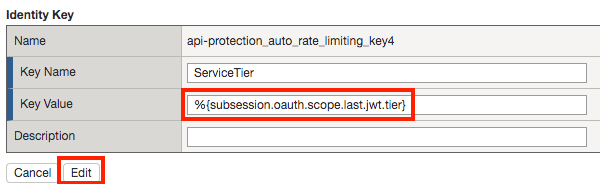
Click api-protection_auto_rate_limiting_key4
Enter the Key Value %{subsession.oauth.scope.last.jwt.tier}
Click Edit
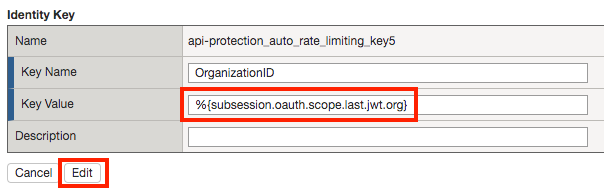
Click api-protection_auto_rate_limiting_key5
Enter the Key Value %{subsession.oauth.scope.last.jwt.org }
Click Edit
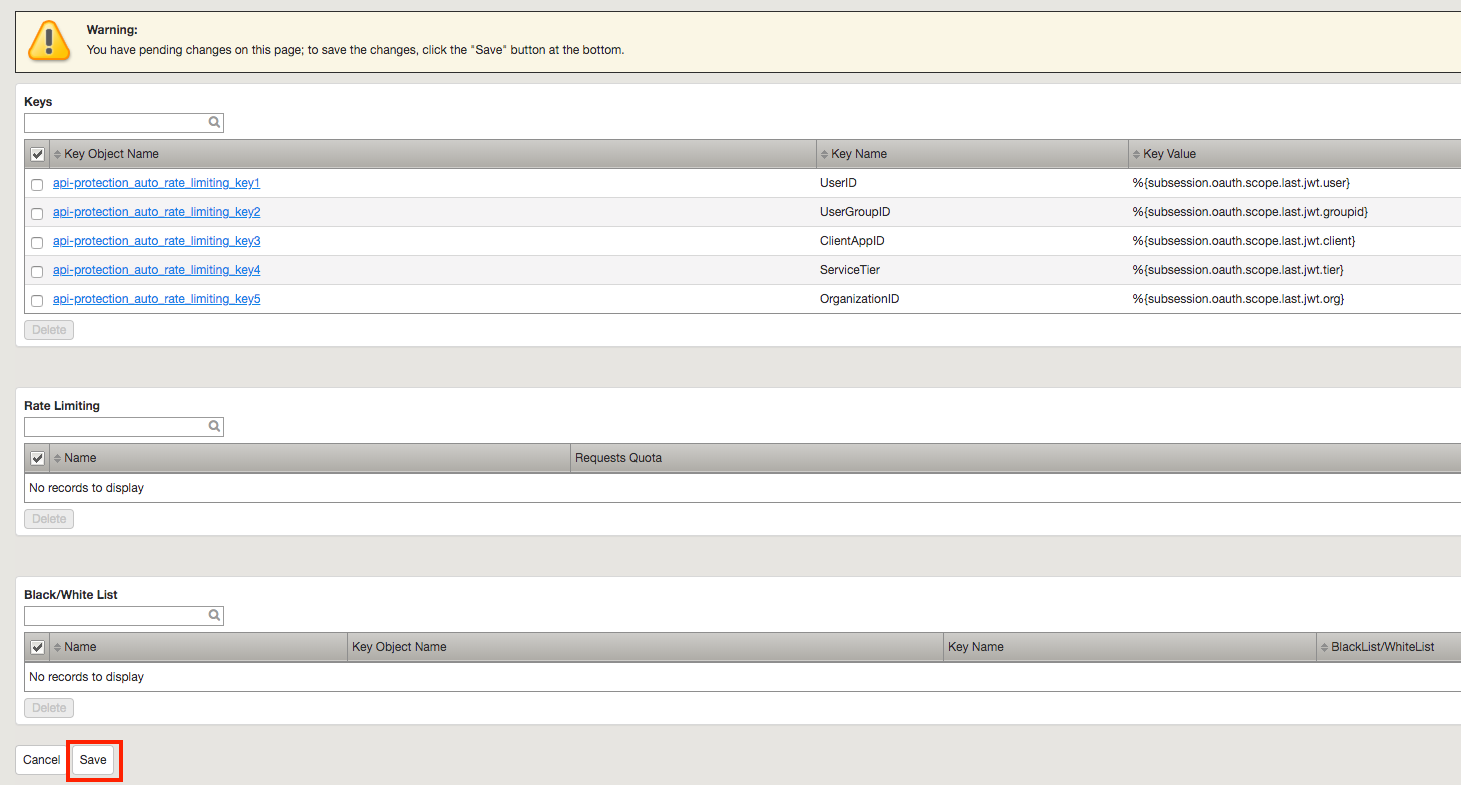
Click Save
Task 3 - Create a Rate Limiting Policy
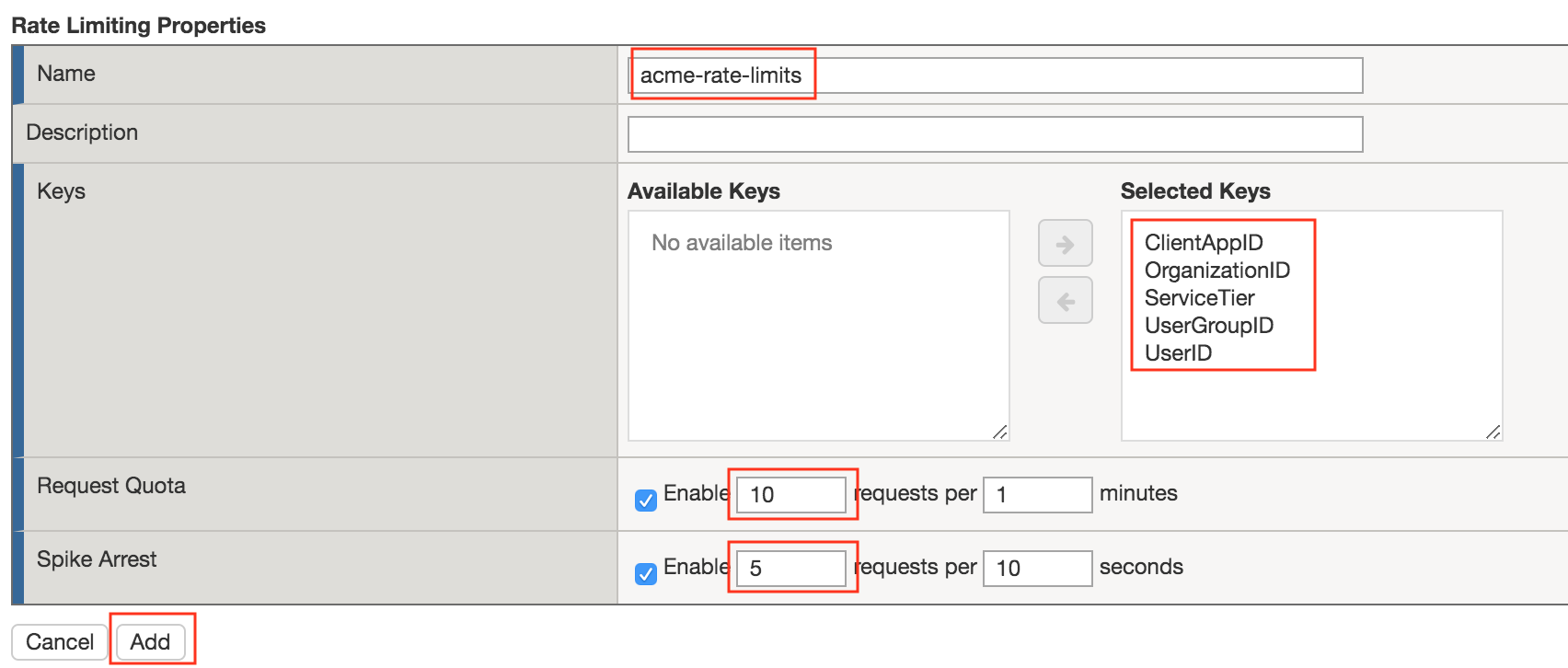
Click Create in the rate limiting section

Enter the Name acme-rate-limits
Move all five keys under Selected Keys
Enter 10 for the number of requests per minute
Enter 5 for the number requests per second
Click Add.
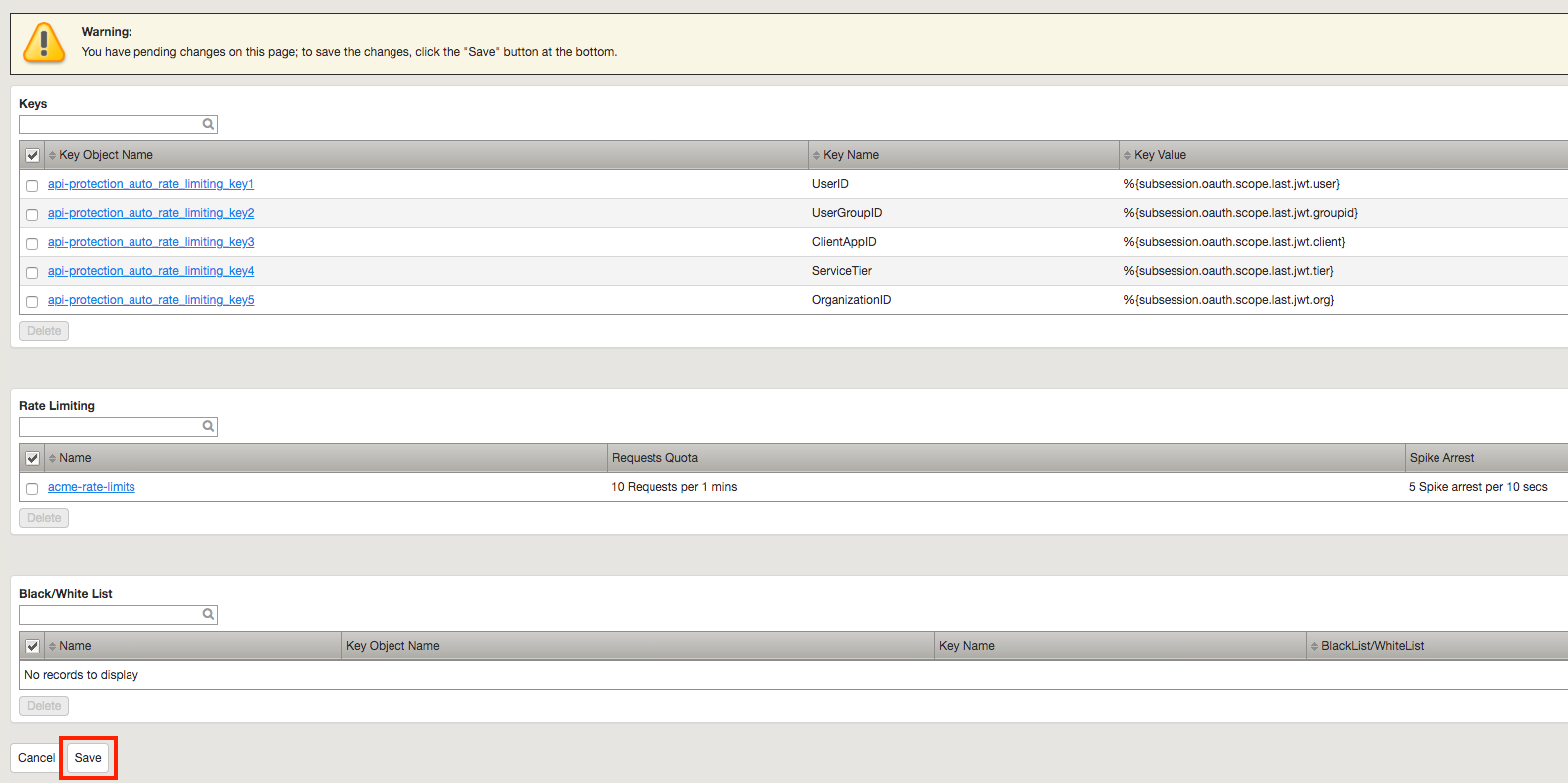
Click Save
Task 4 - Apply the Rate Limiting Policy
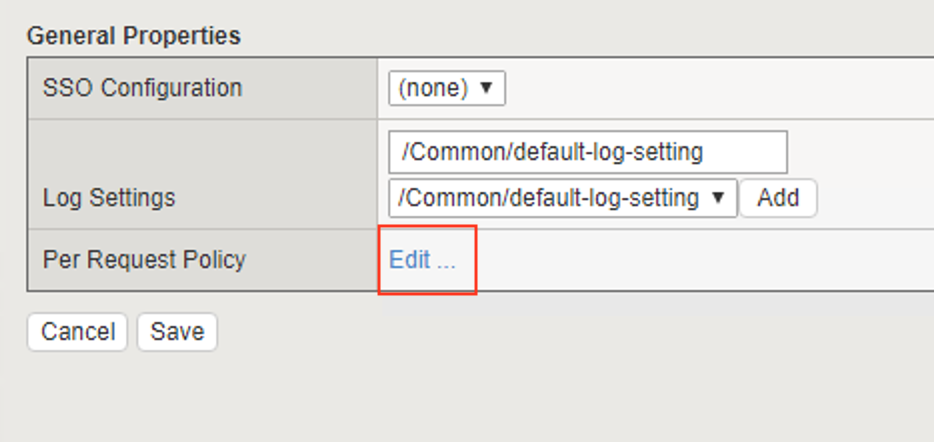
Click Access Control from the ribbon

Click Edit Per Request Policy
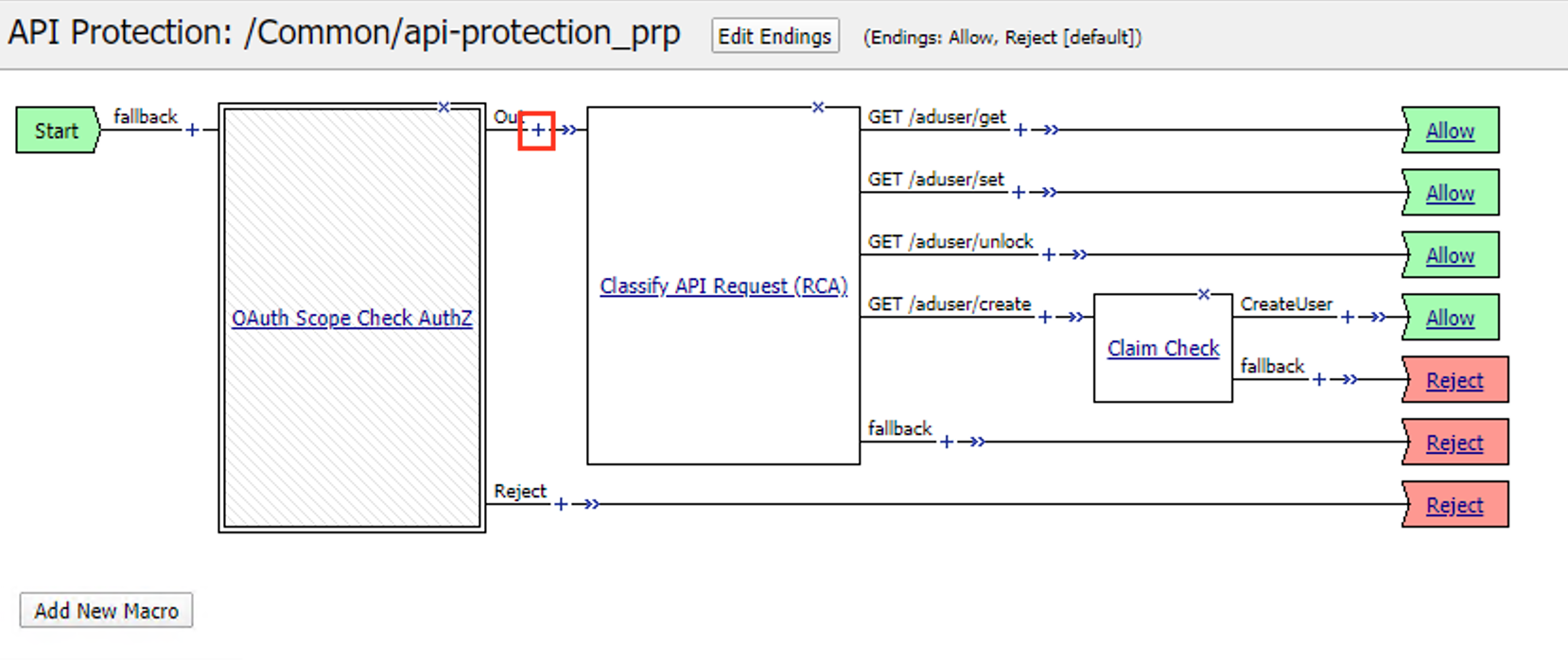
Click the + (Plus Symbol) on the Out branch of the OAuth Scope Check AuthZ Macro
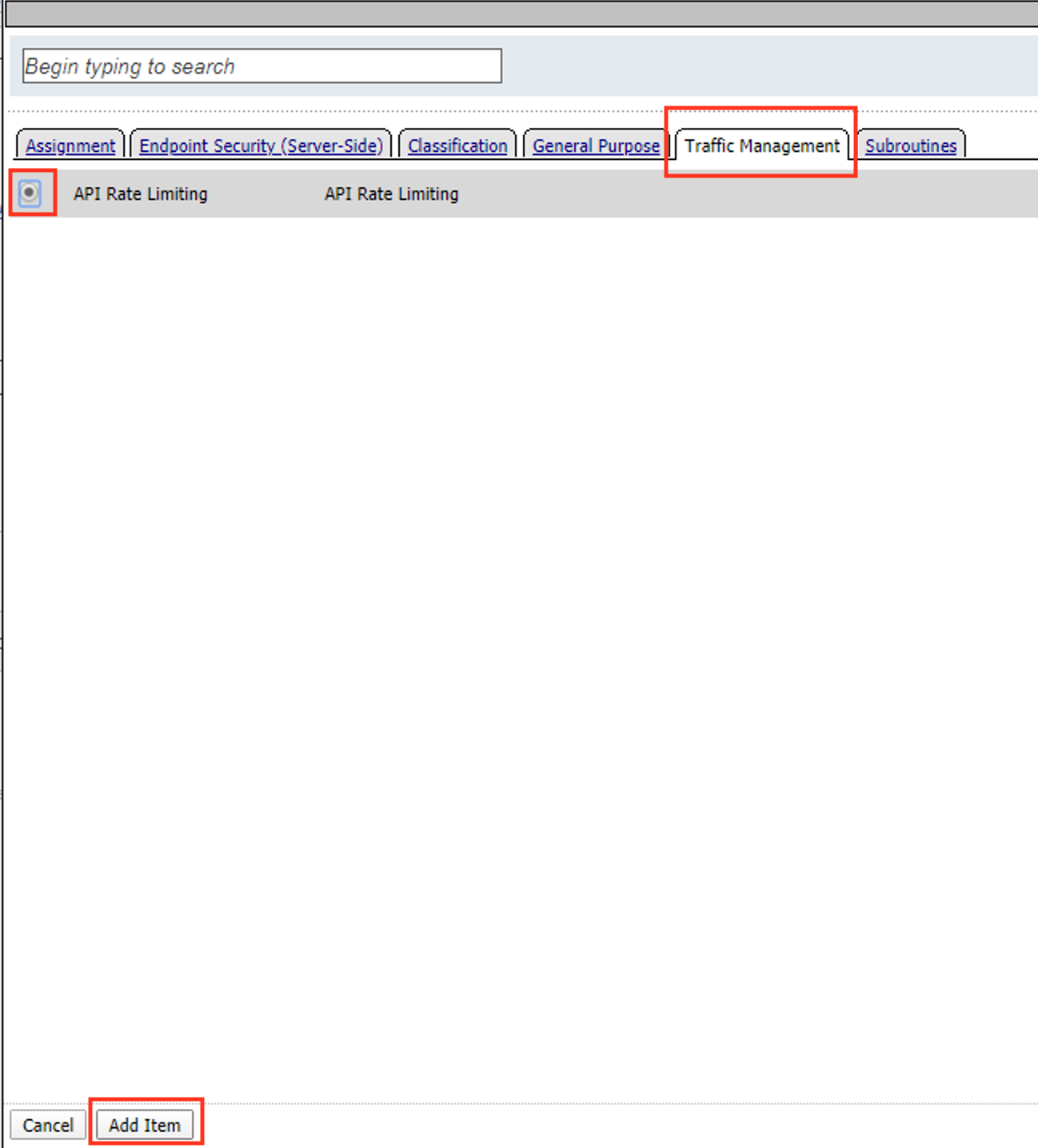
Click the Traffic Management tab
Select API Rate Limiting
Click Add Item
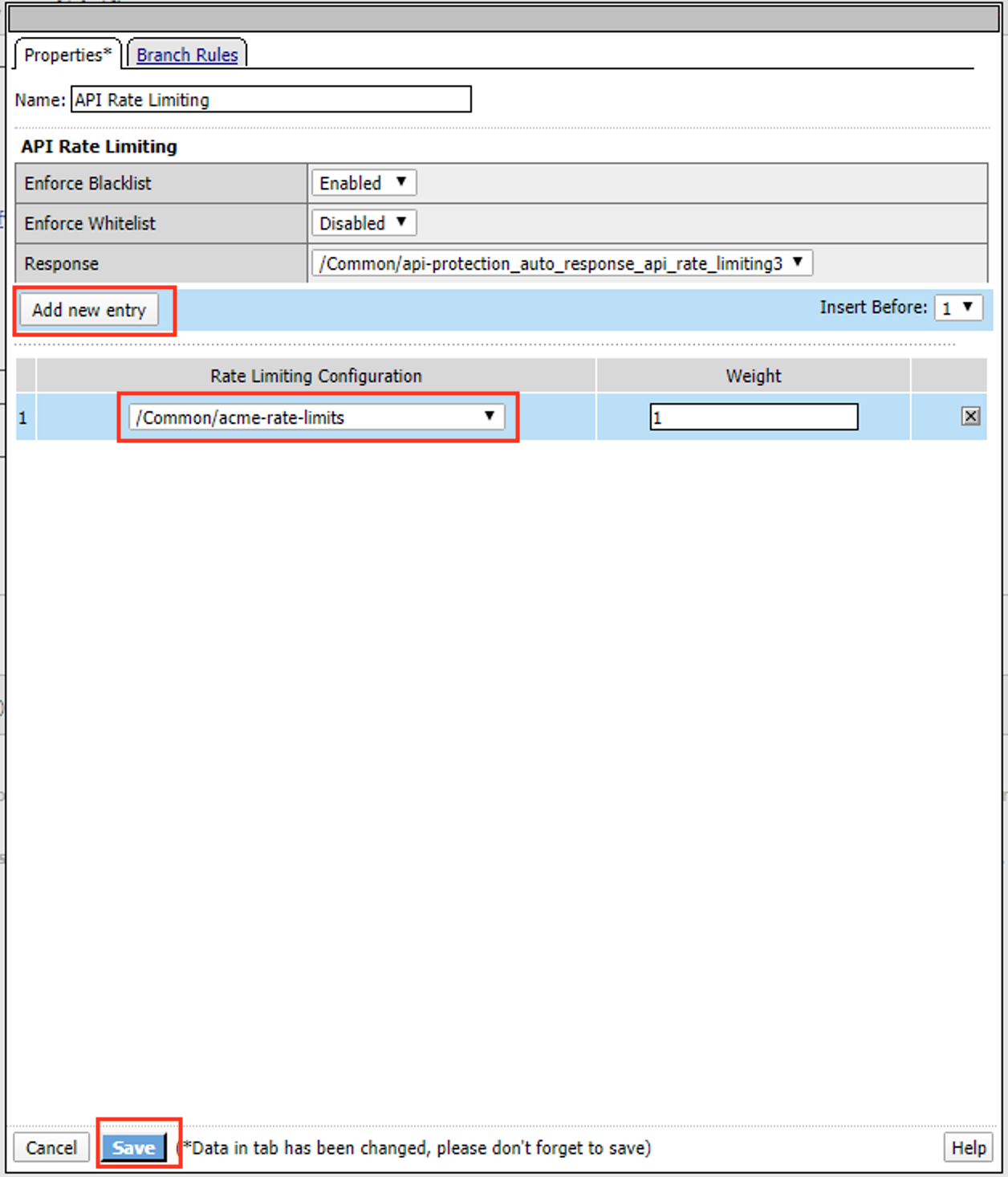
Click Add new entry
Select acme-rate-limits
Click Save
Verify the Rate Limiting agent now appears in the appropriate location
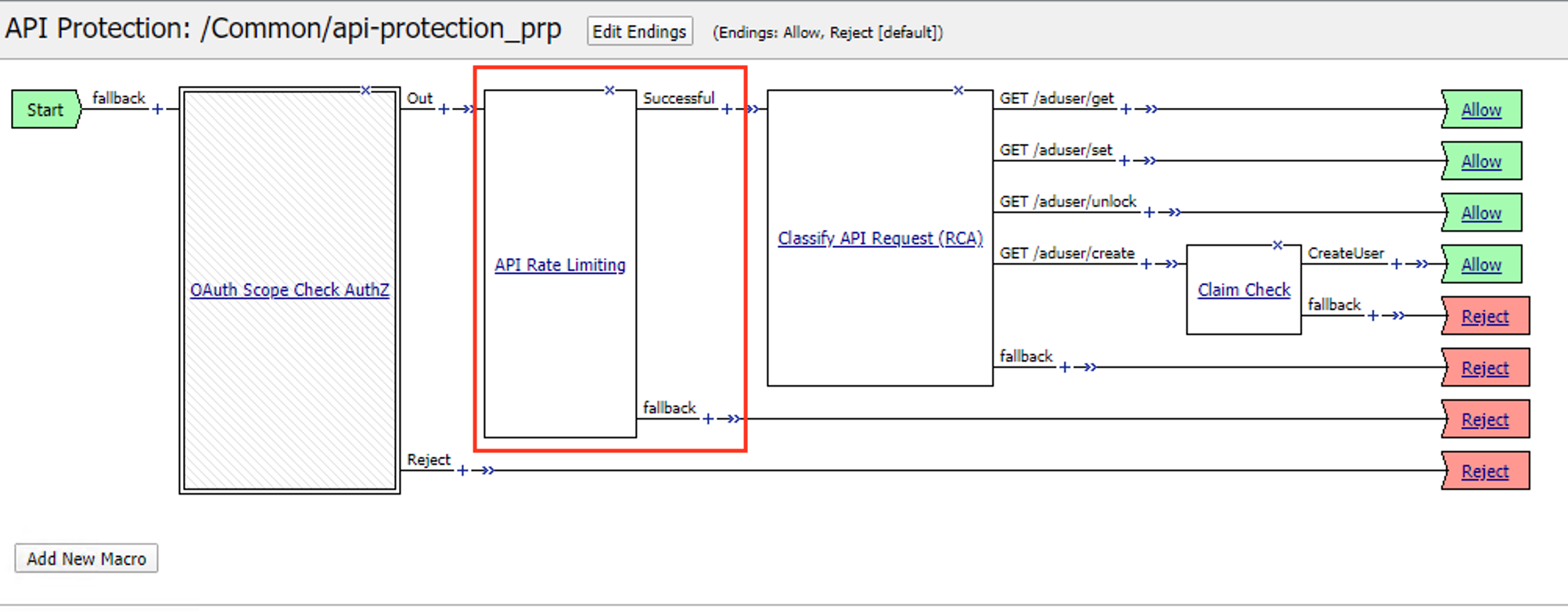
Task 5 - Test Rate Limiting
From Postman, return to Runner
Click Retry to rerun the request an additional 100 times.
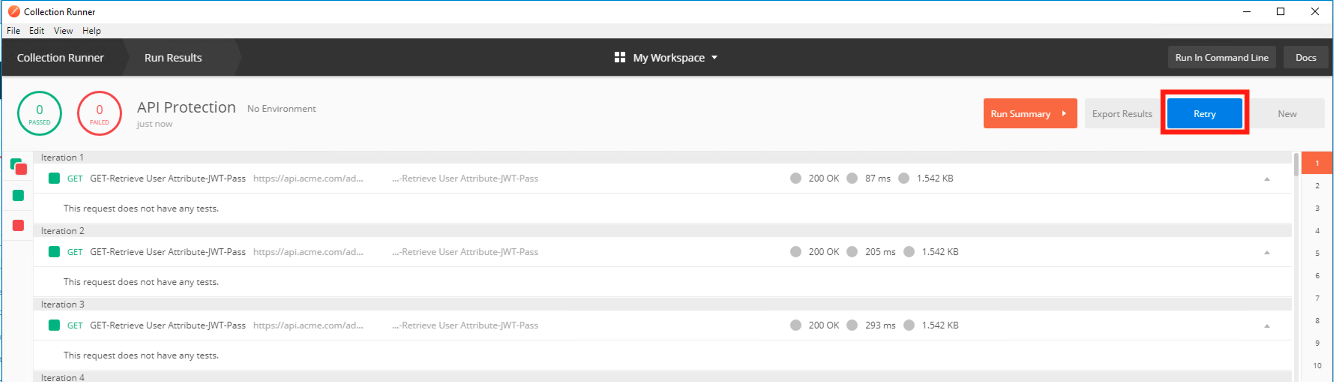
On the 6th request you begin to receive a 429 Too Many Requests response status code