Lab 2.5 - Creating an APM Policy - LDAP
PUA requires a Directory Service to authenticate users. In this section you will build a LDAP macro to perform the authentication function.
Task - Build a LDAP macro
Note
This lab makes use of APM macros to make policies easy to view and manage.
The LDAP macro will verify that the requesting user has a valid account and the appropriate group permission.
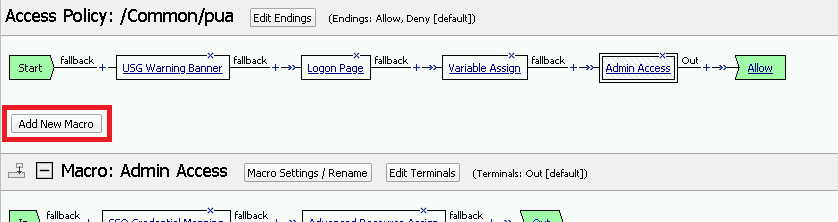
Click the Add New Macro button
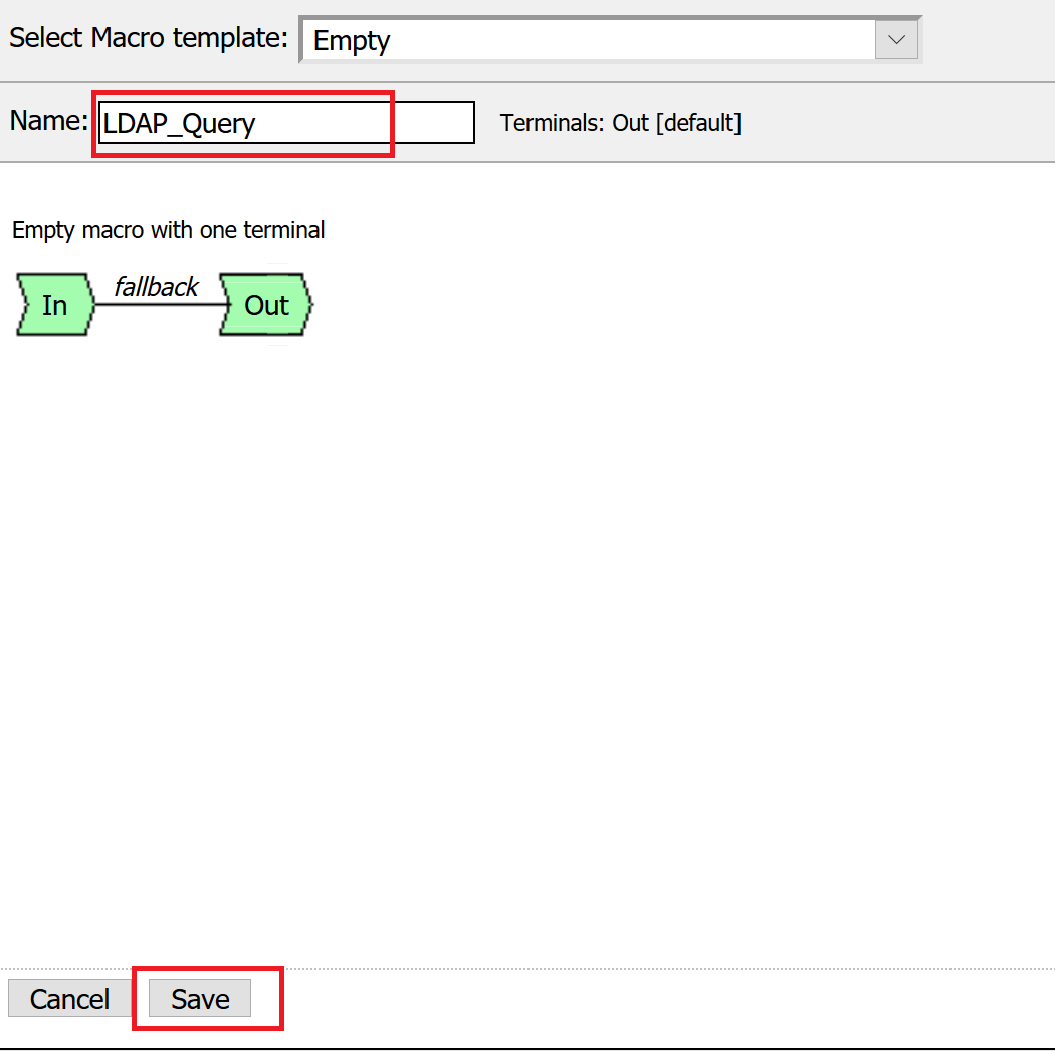
Enter LDAP_Query for the and click Save
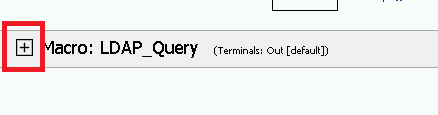
Open the newly created macro by clicking the plus sign by the name: Macro: LDAP_Query
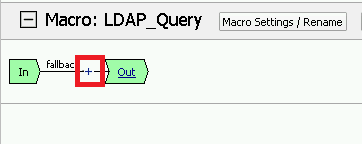
Add the LDAP Query action by clicking the plus sign
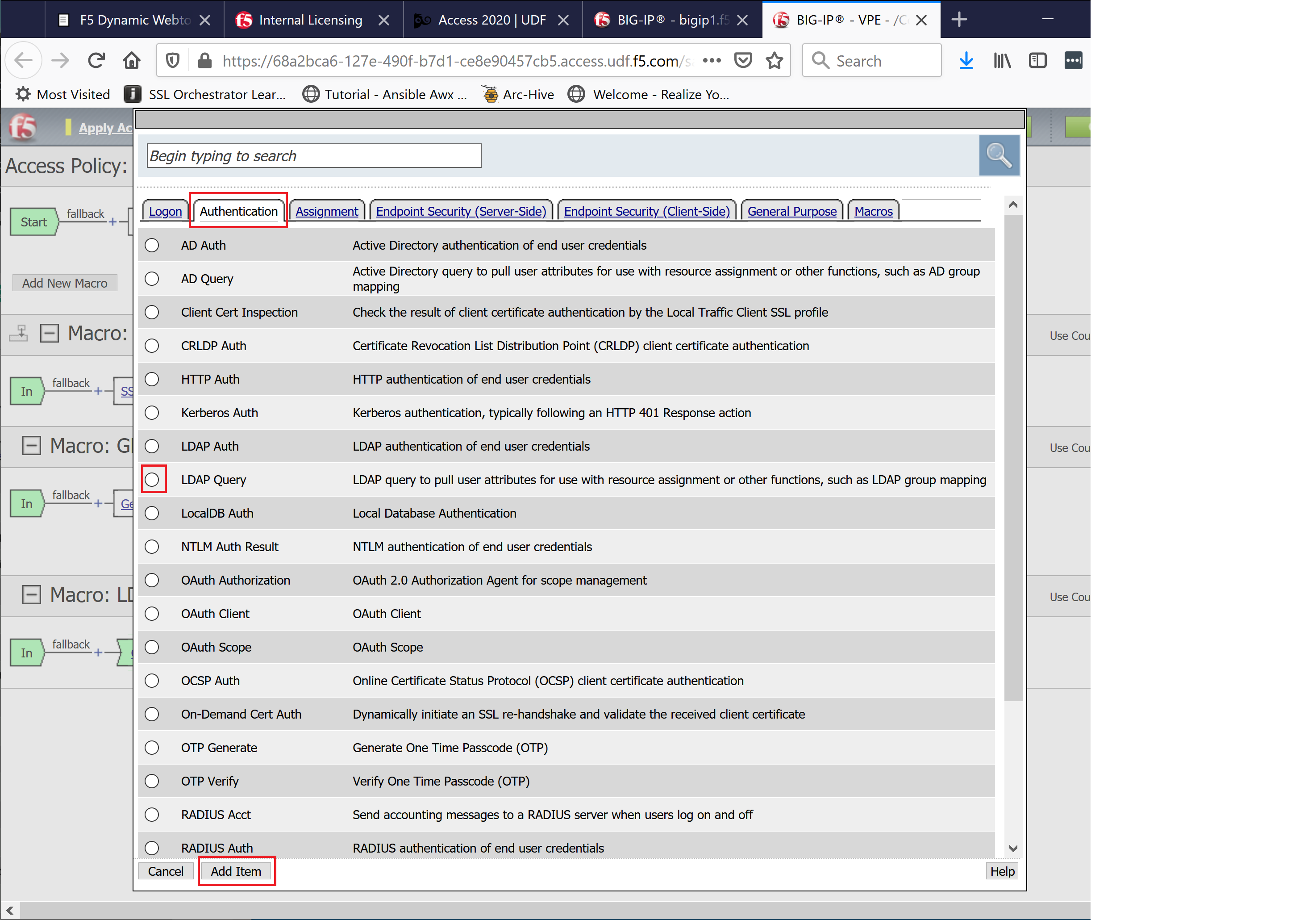
Select the Authentication tab, select the LDAP Query agent, and then click Add Item
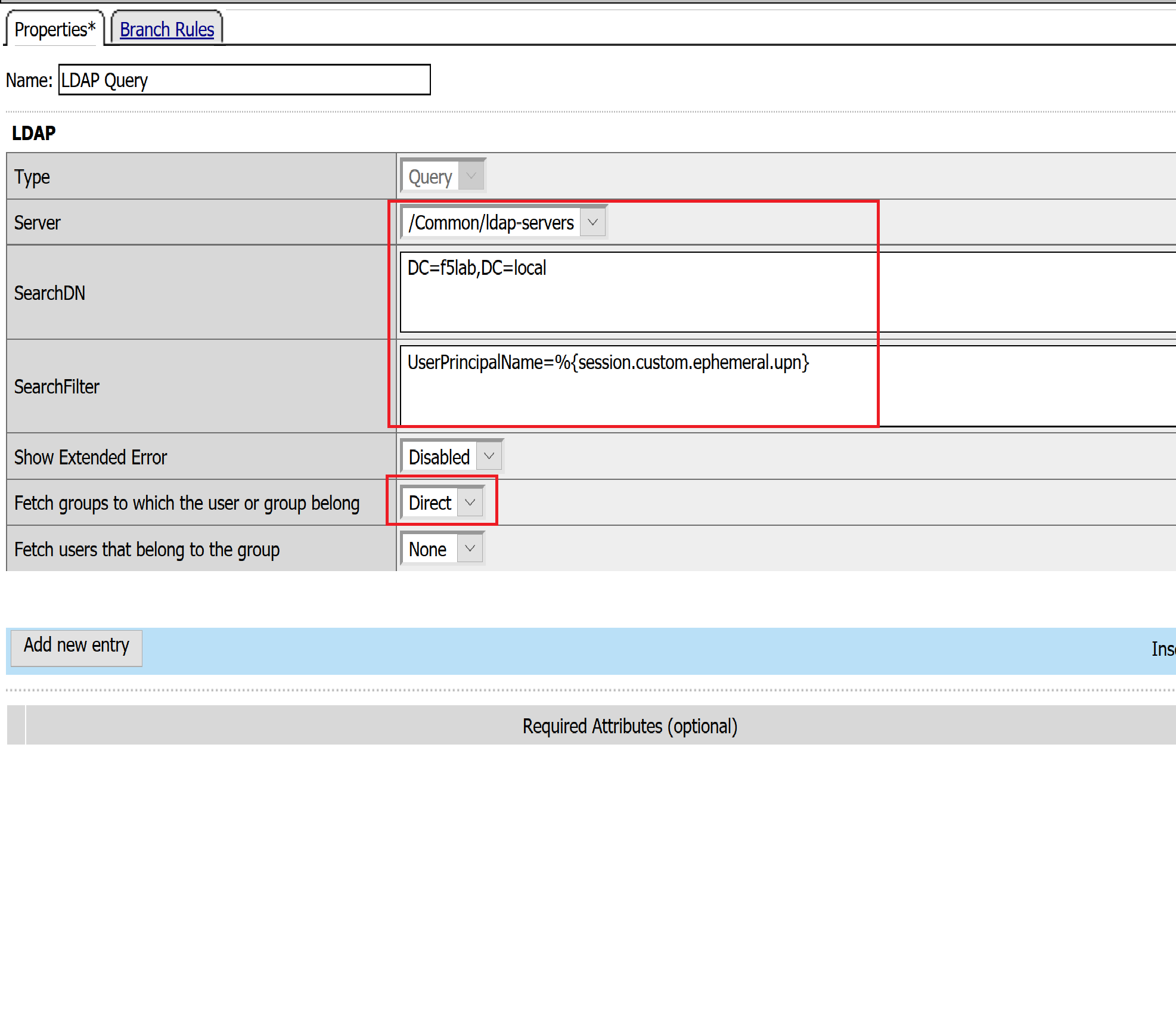
Update the Properties tab by modifying the Server, SearchDN, SearchFilter, and Fetch Groups settings
- Server = /Common/ldap-servers
- SearchDN = DC=f5lab,DC=local
- SearchFilter = UserPrincipalName=%{session.custom.ephemeral.upn}
- Fetch groups to which the user or group belong = Direct
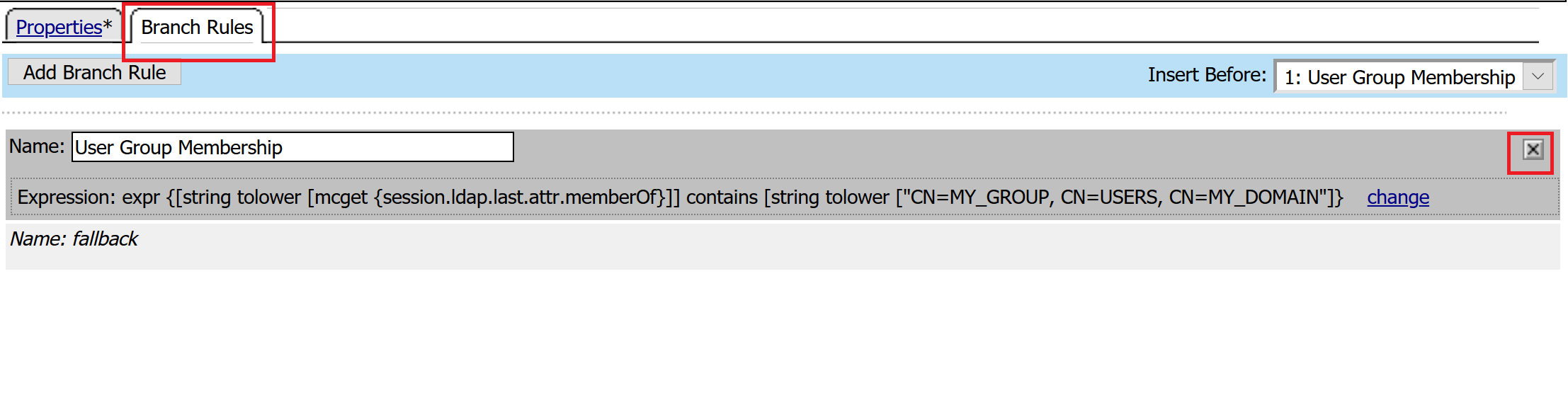
Click on the Branch Rules tab to edit the Branch Rules
Click the X button beside User Group Membership. This will delete the branch
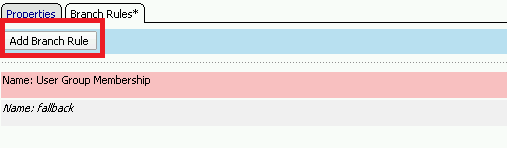
Click Add Branch Rule
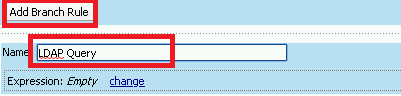
Enter LDAP Query in the Name field and click the change link
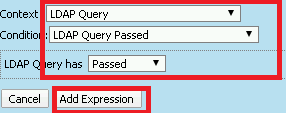
Click the Add Expression button

Change the Context setting to LDAP Query and the Condition setting to LDAP Query Passed. Ensure that LDAP Query has is set to Passed. Click th
Click the Add Expression button
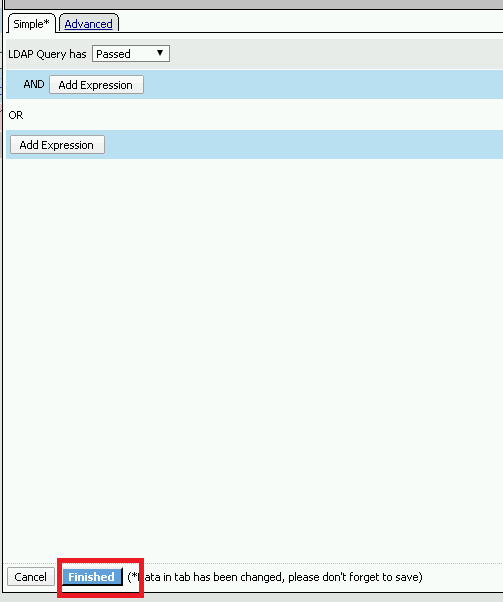
Click Finish, and then click Save
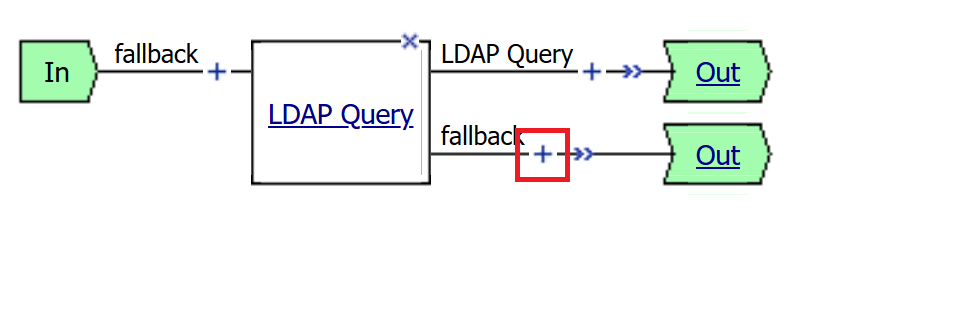
Now add a Message Box agent to alert when the LDAP query fails. Click on the plus sign on the fallback branch (between the LDAP Query and the OUT terminal)
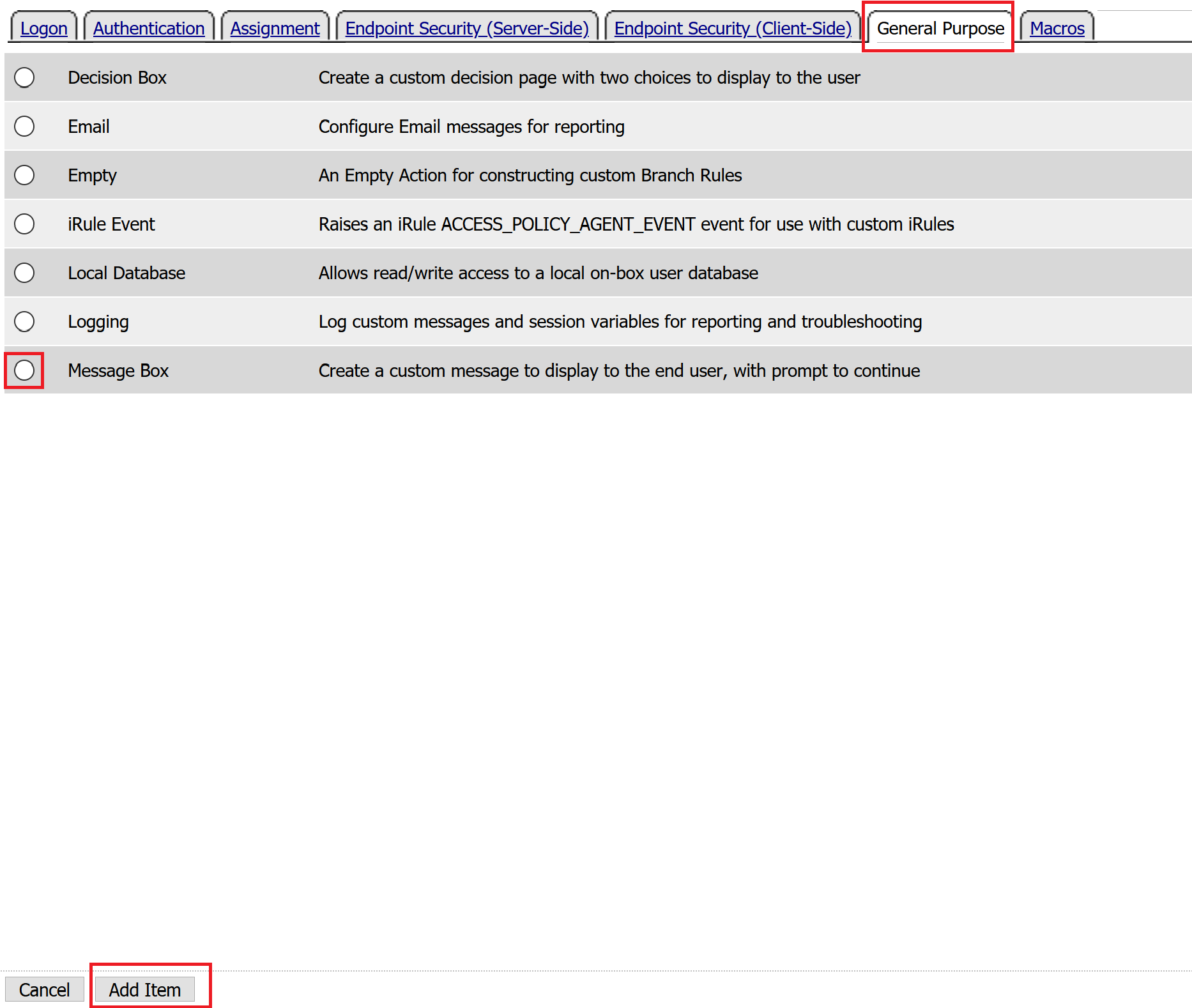
Select the General Purpose tab and then select Message Box in the main section, and Click the Add Item button
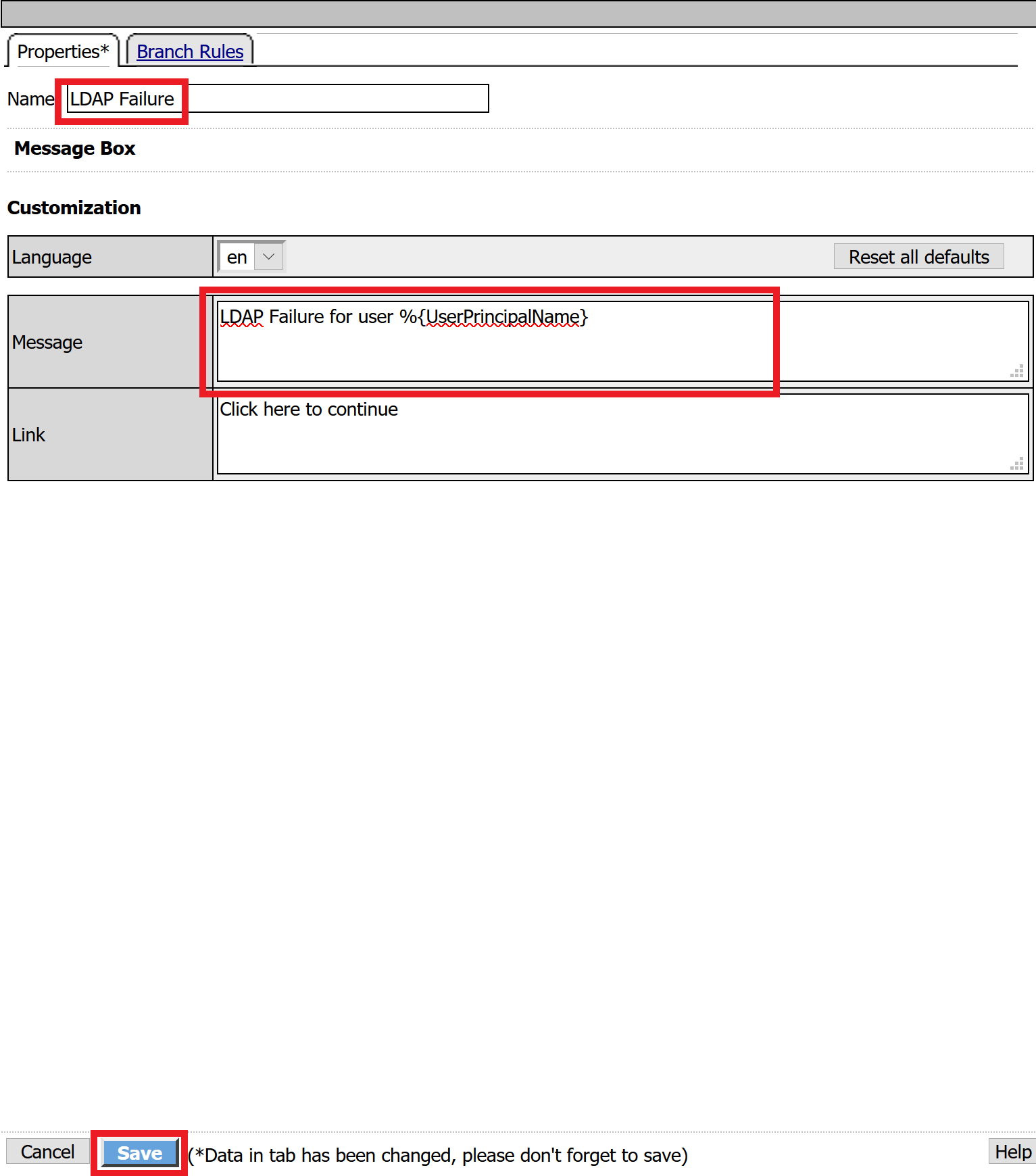
Enter the following values for the message box agent, and Click on the Save button
Name:    **LDAP Failure**
Message: **LDAP Failure for user %{UserPrincipalName}**
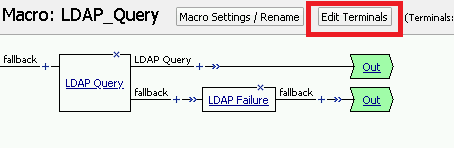
Click on the Edit Terminals button to change the terminals to report Success and Failure
Change the Name from out to Success, and then click on the Add Terminal button
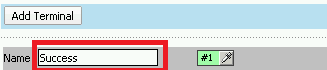
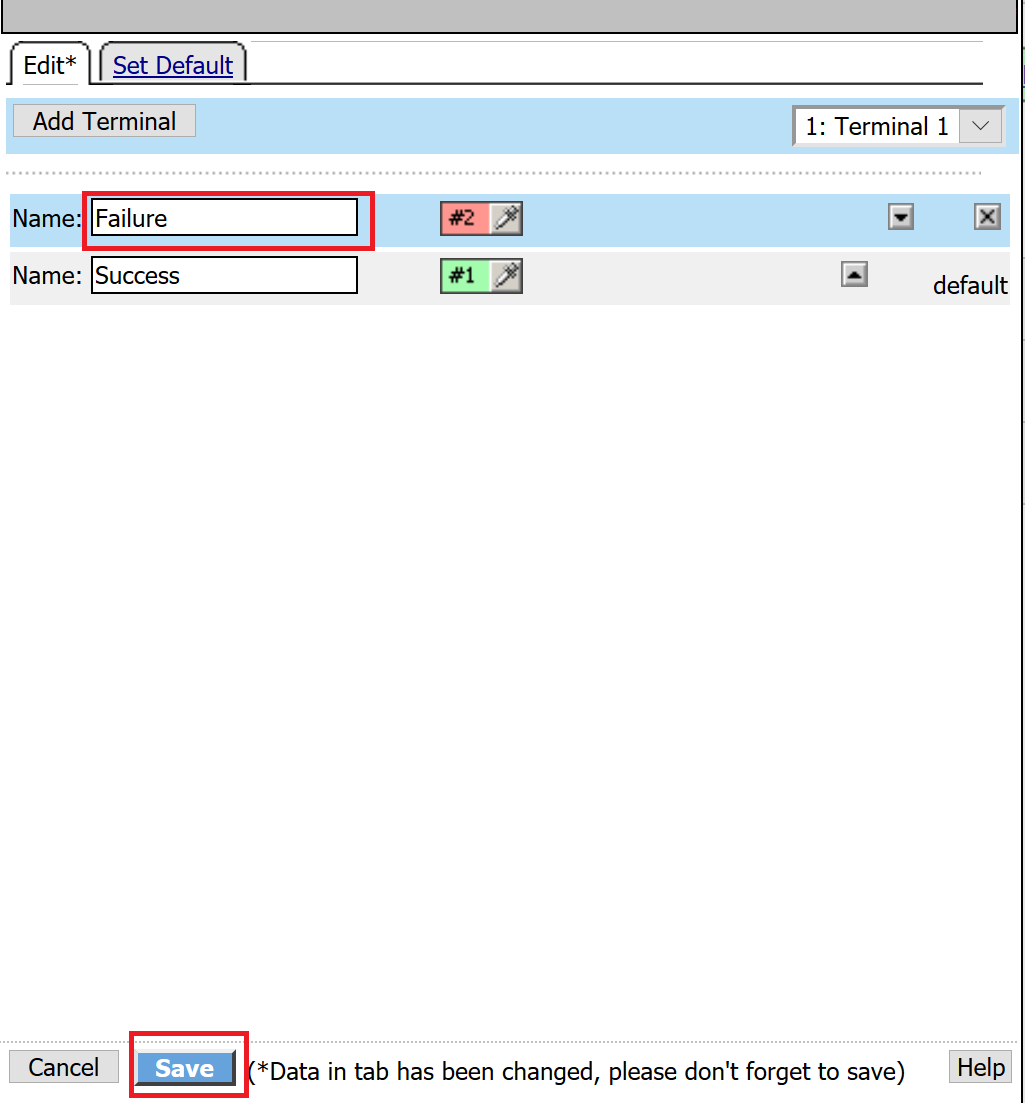
Change the name from Terminal 1 to Failure, and then click on Save
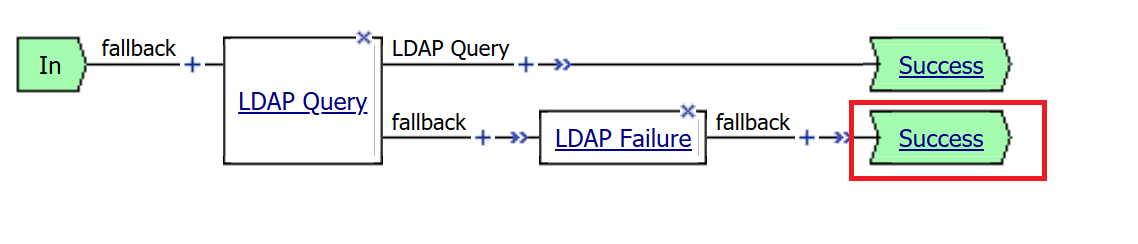
Click the terminal for the LDAP Failure branch
Change the setting from Success to Failure. and click Save
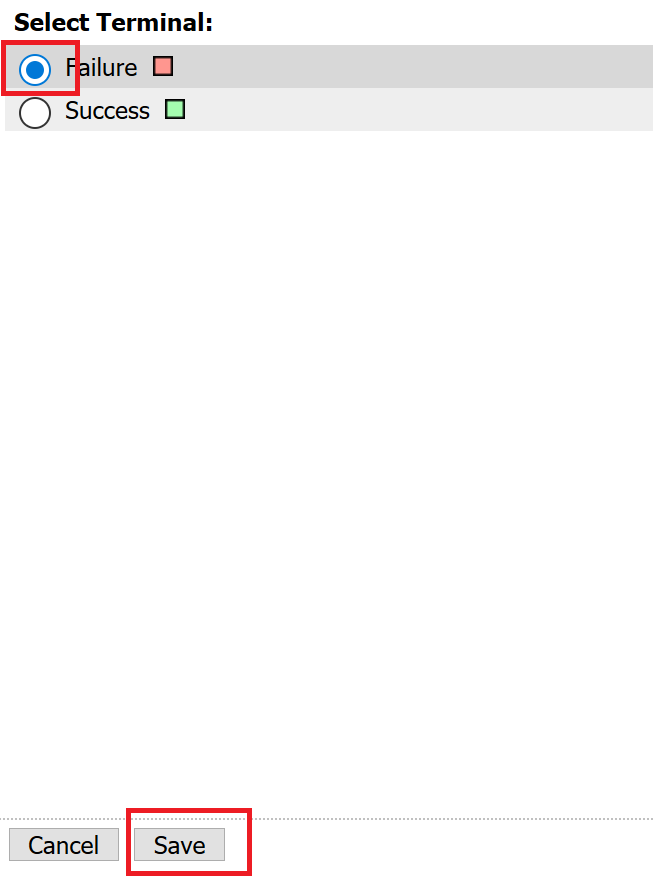
Click Save
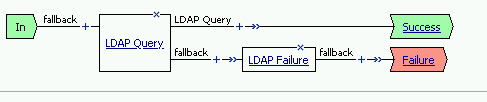
Here is the completed macro.