Lab 2.6 - Creating an APM Policy - CAC Authentication
In this section, you will build a macro to request the user certificate.
Task - Build CAC AUTH Macro
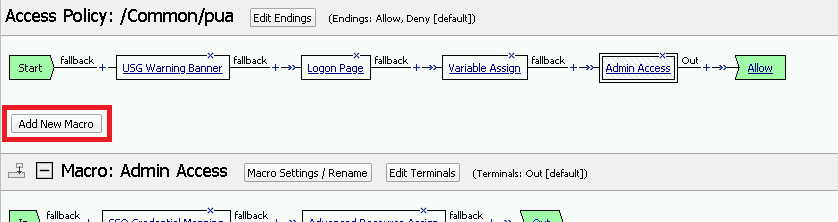
Click the Add New Macro button
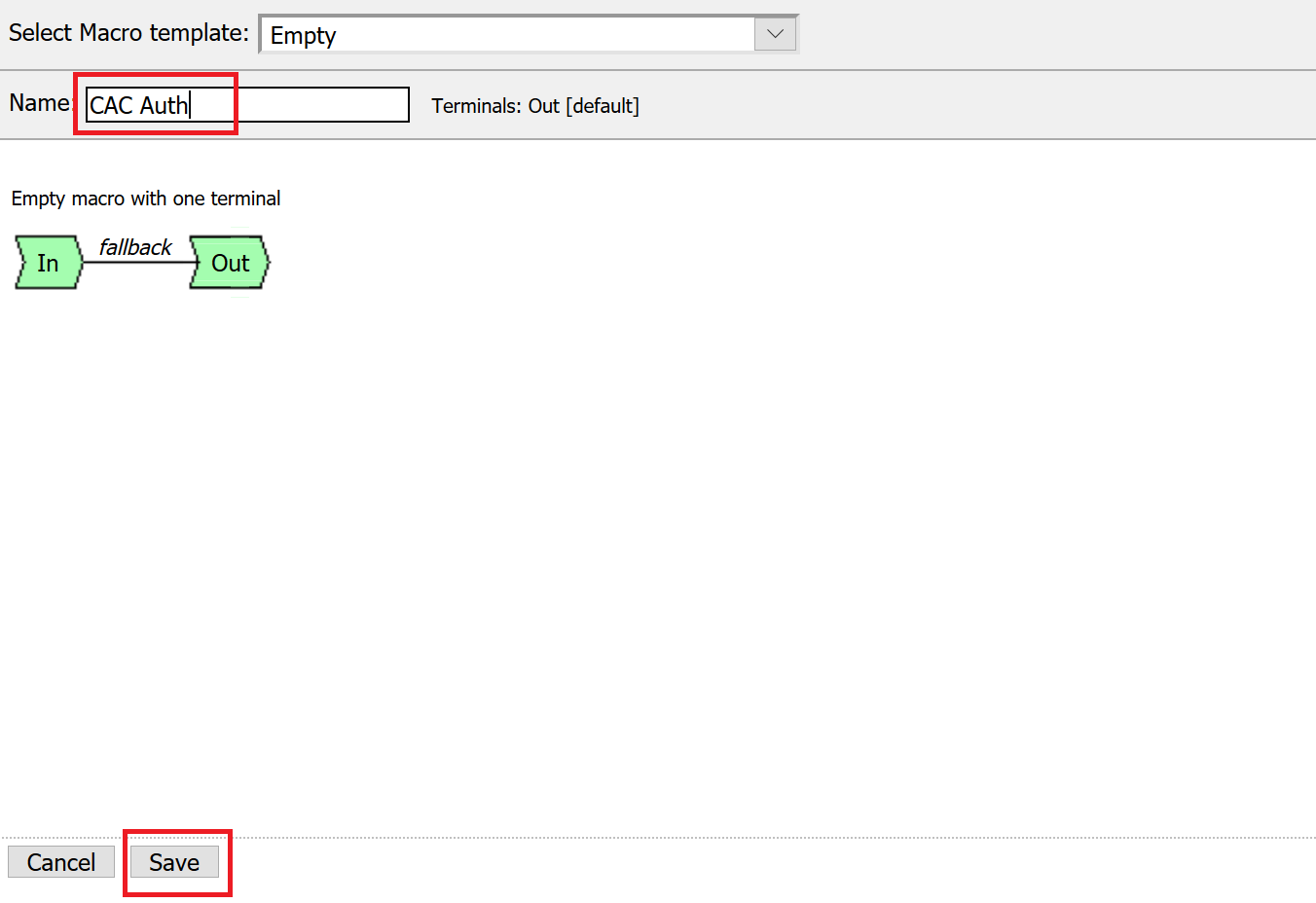
Name the Macro CAC Auth and click save
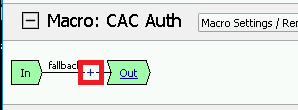
Open the newly created macro by clicking the plus sign by the name: CAC Auth
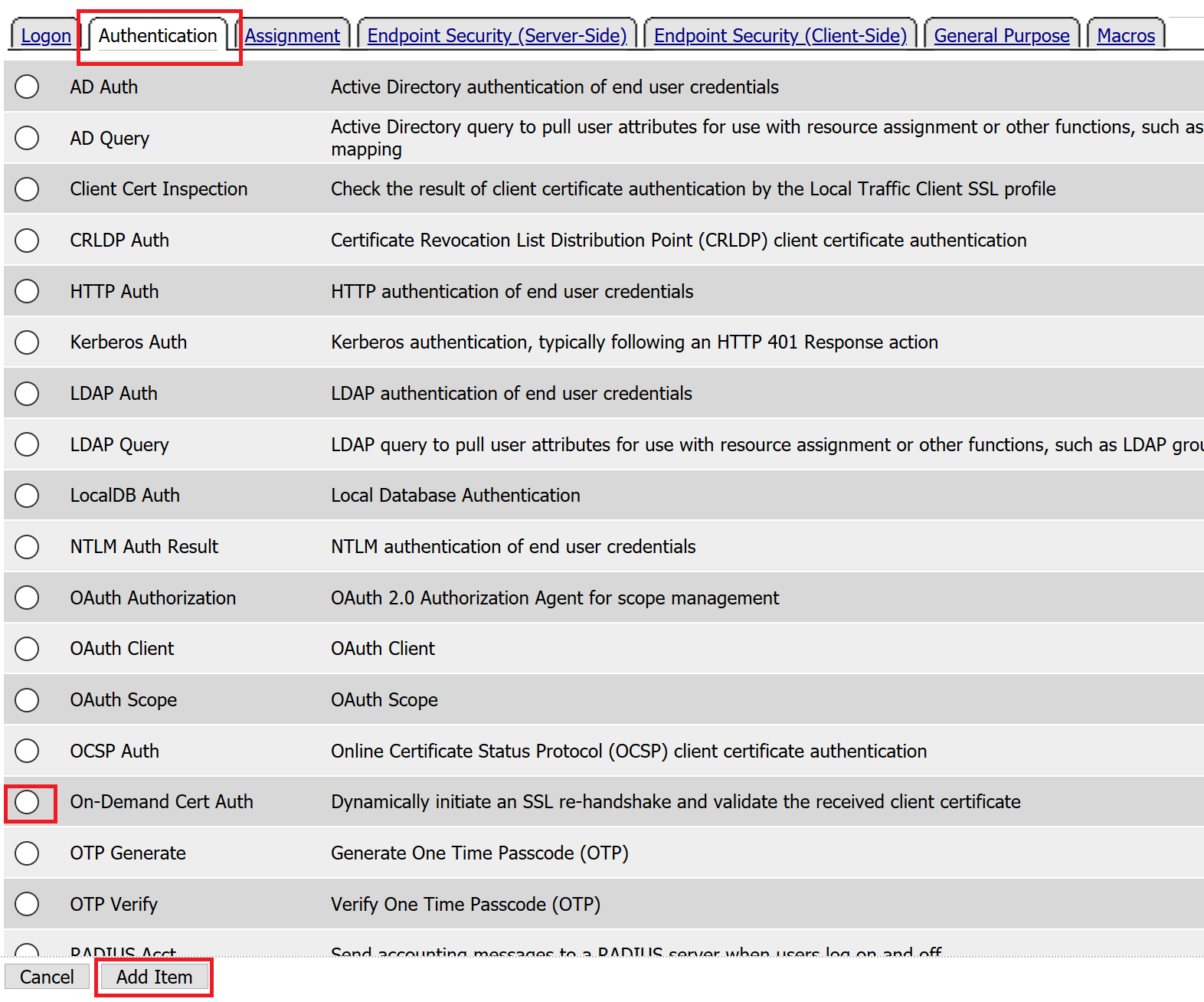
Click the Authentication tab across the top, select On-Demand Cert Auth, and click Add Item
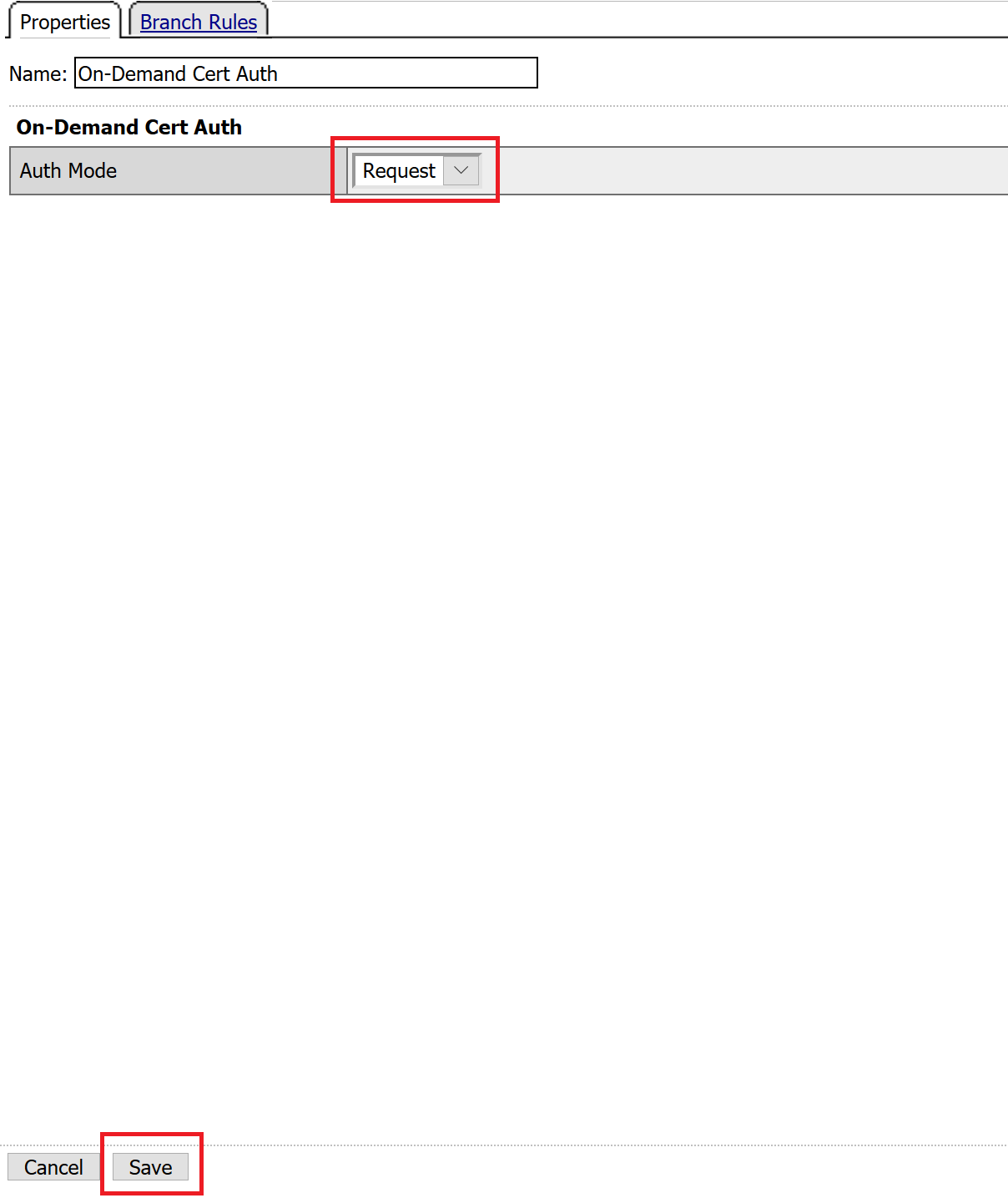
Leave the Auth Mode set to the default Request, and click Save
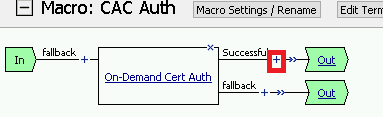
Click the plus sign on the Successful branch
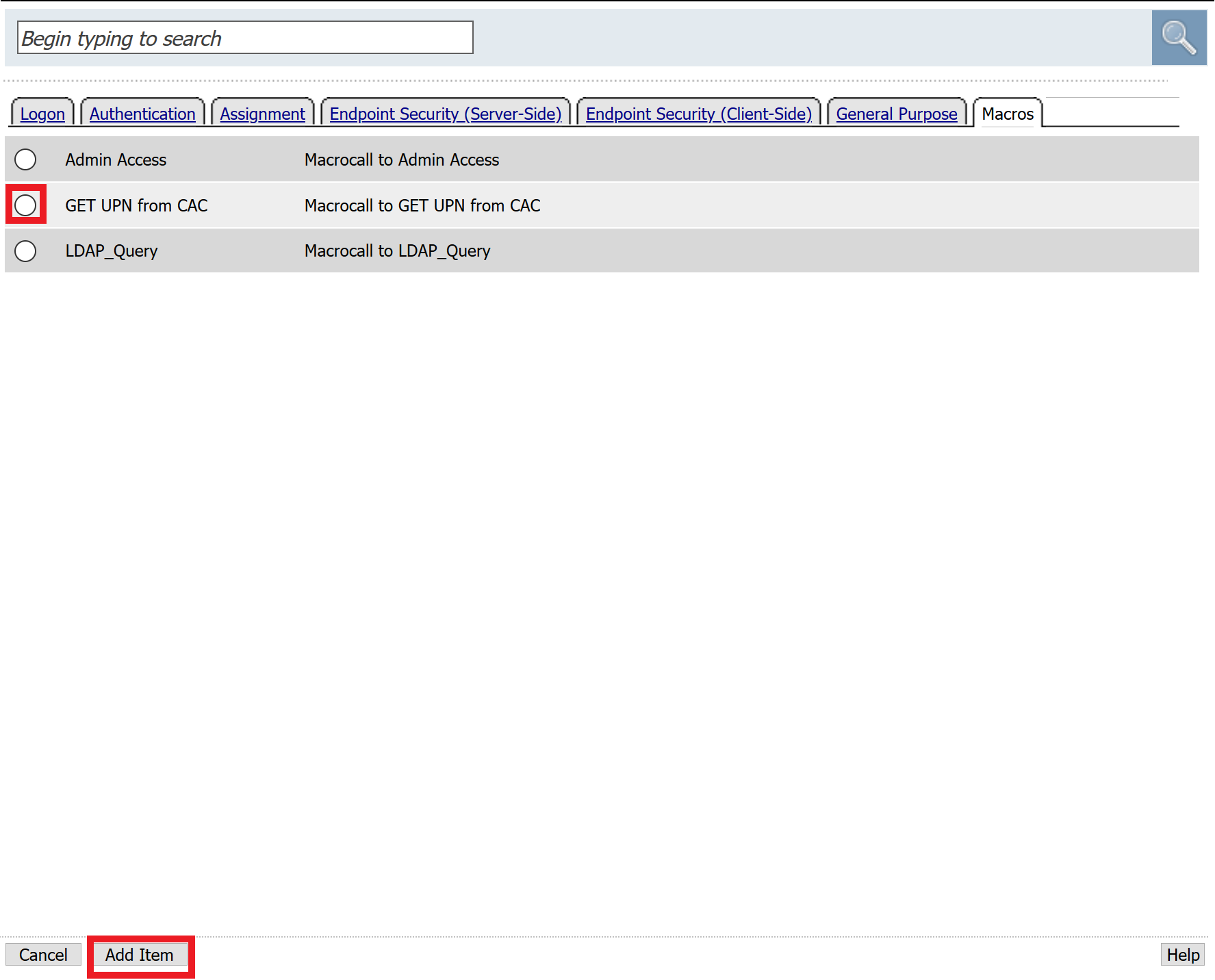
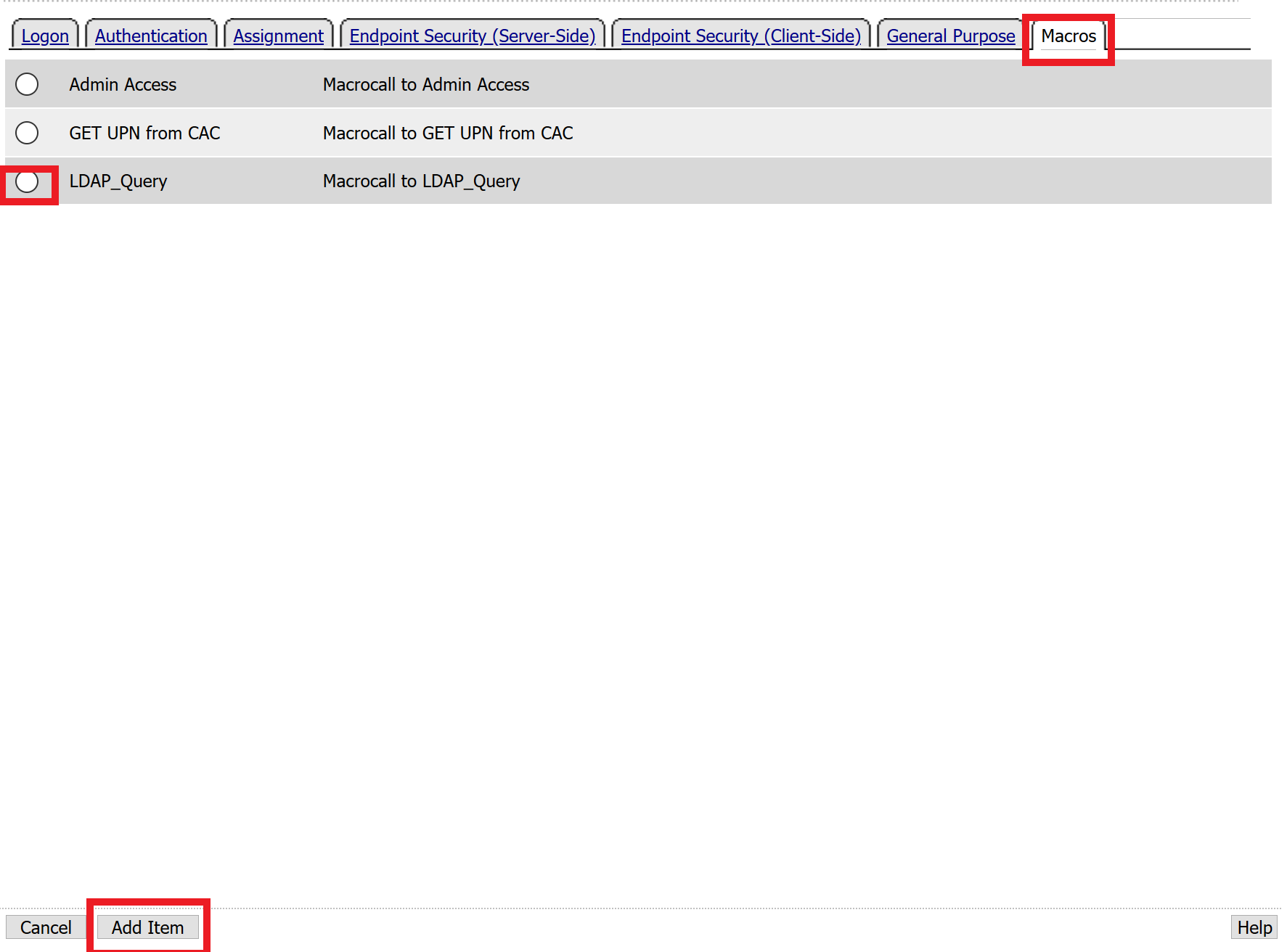
Click the tab Macros across the top, select the GET UPN from CAC button in the main page, and click Add Item
Click the plus sign on the Found branch

Select Macros across the top, select the LDAP_Query button in the main page, and click Add Item
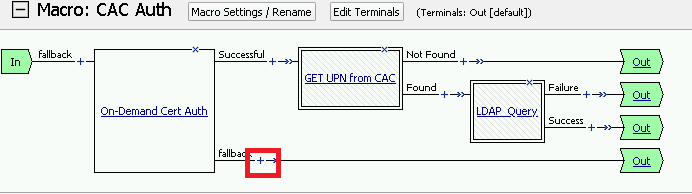
Click the plus sign on the fallback branch after the On-Demand Cert Auth
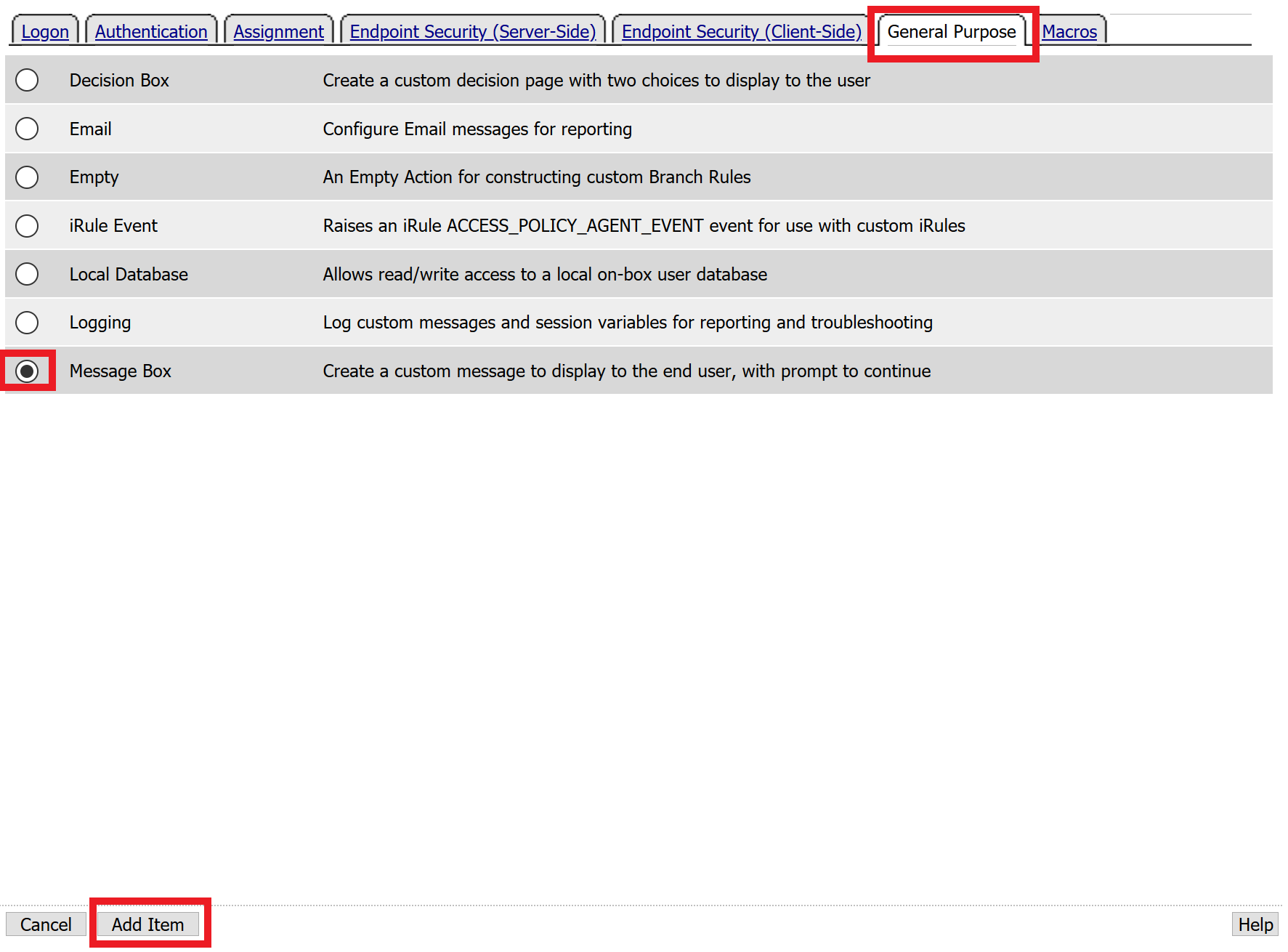
Select General Purpose across the top, select Message Box in the main page, and click Add Item
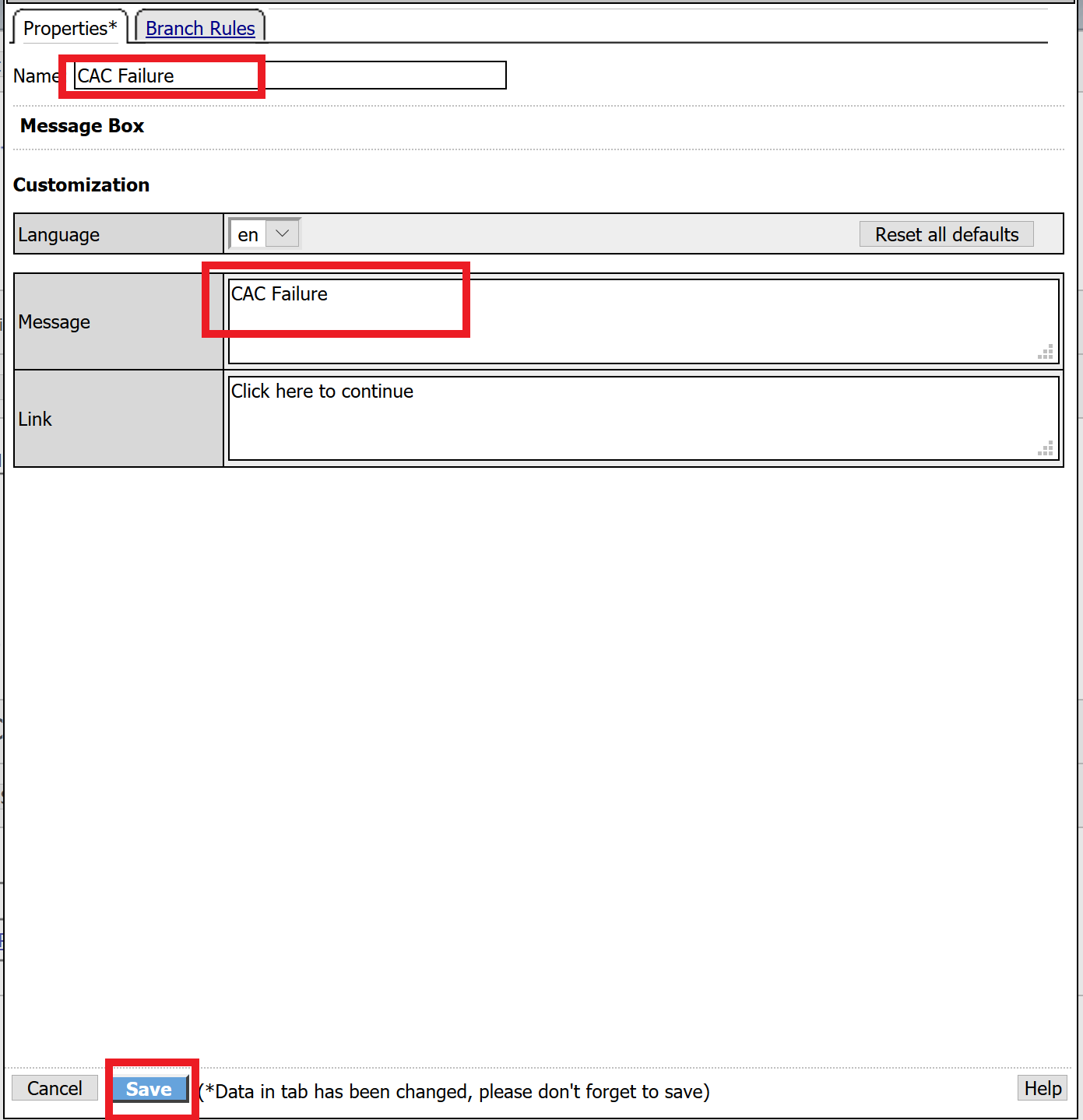
Name the message box CAC Failure, enter CAC Failure in the Message box, and click Save
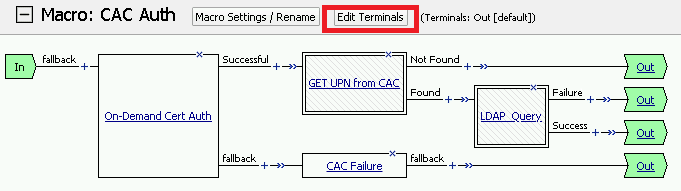
Click Edit Terminals
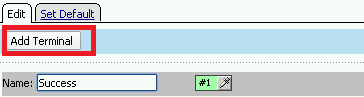
Change the default name from Out to Success, and click Add Terminal
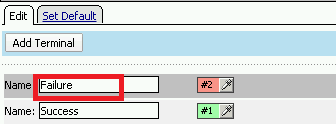
Change the default name to Failure
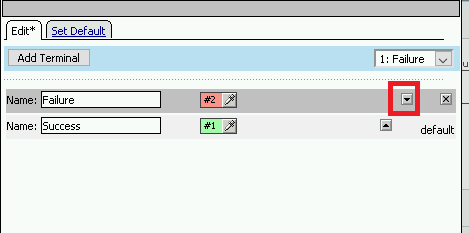
Click the down arrow beside the Failure box to change the order. The Success terminal should be on top. Click Save
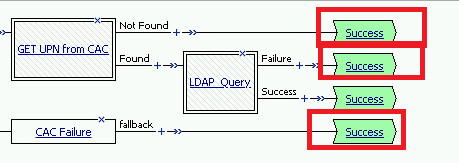
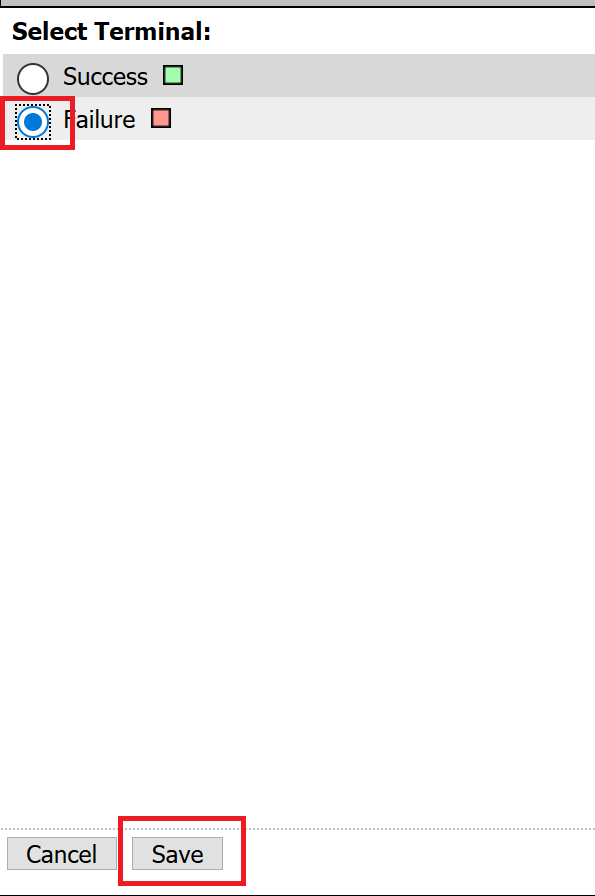
Click the terminals on the Not Found, Failure, Fallback branches and change them from Success to Failure. Click Save
Note
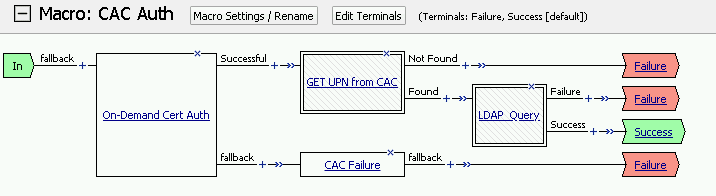
The completed CAC Auth Macro