Lab 2.6 - Contextual Access
In this section you will configure Contextual Access for the previously created Application Groups
Task - Configure Contextual Access for header_ad Group
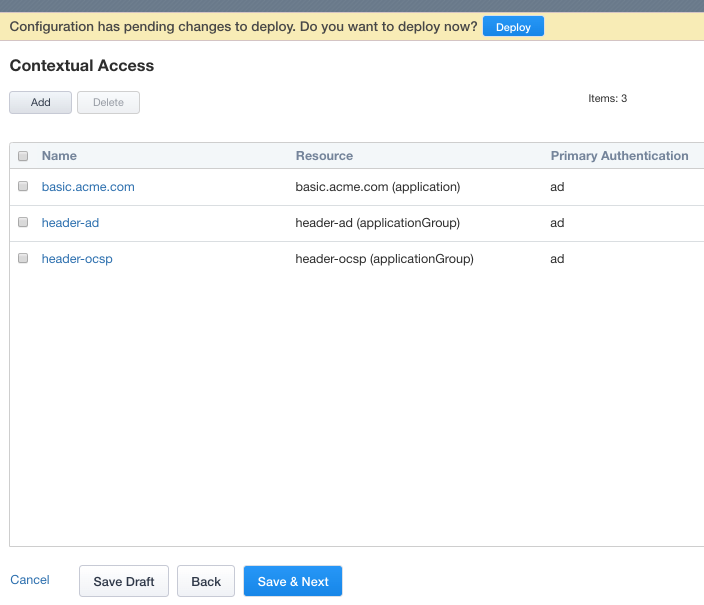
Click Contextual Access from the ribbon

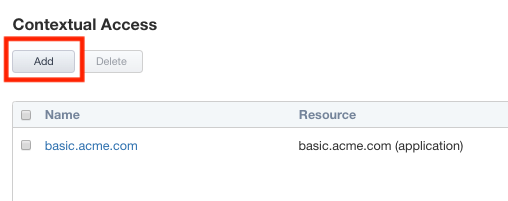
Click Add
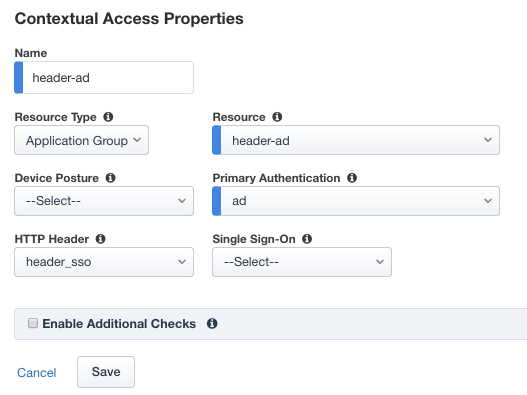
Enter Name header-ad
Select Application Group from the Resource Type dropdown
Select header-ad from the Resource dropdown
Select ad from the Primary Authentication dropdown
Select header_sso from the HTTP_Header dropdown
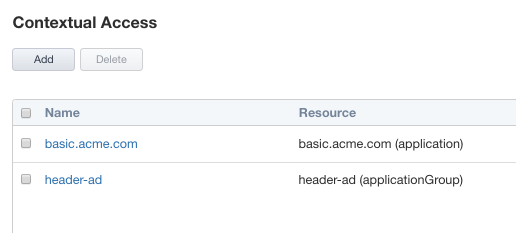
Click Save
Task - Configure Contextual Access for header-ocsp Group
Click Add
Enter Name header-ocsp
Select Application Group from the Resource Type dropdown
Select header-ocsp from the Resource dropdown
Select ad from the Primary Authentication dropdown
Select header_sso from the HTTP_Header dropdown
Check Enable Additional Checks
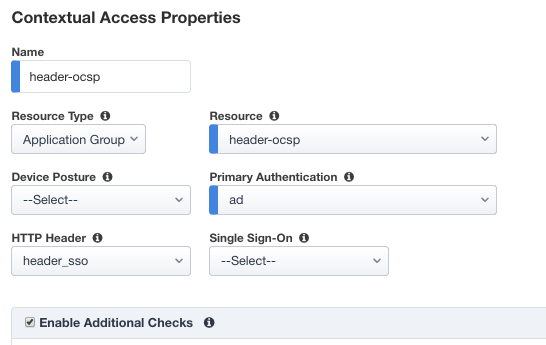
Click Add to add a Trigger Rule
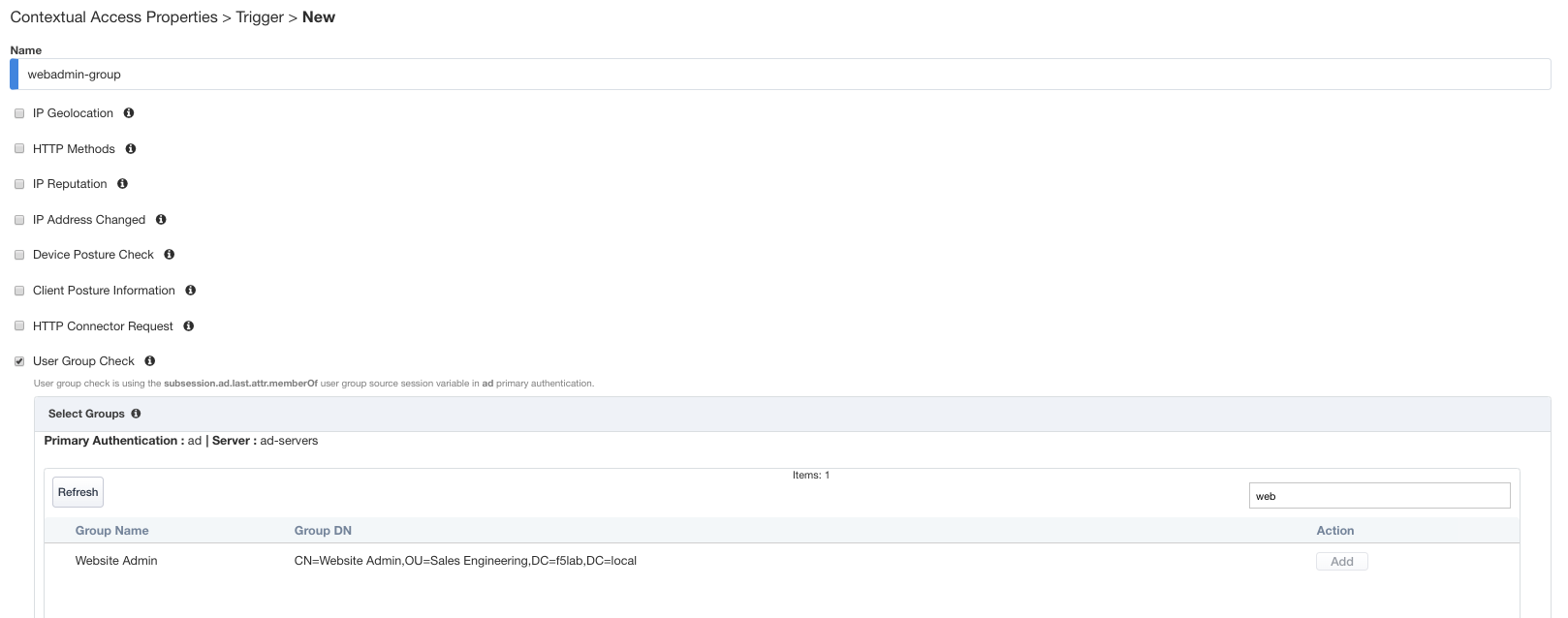
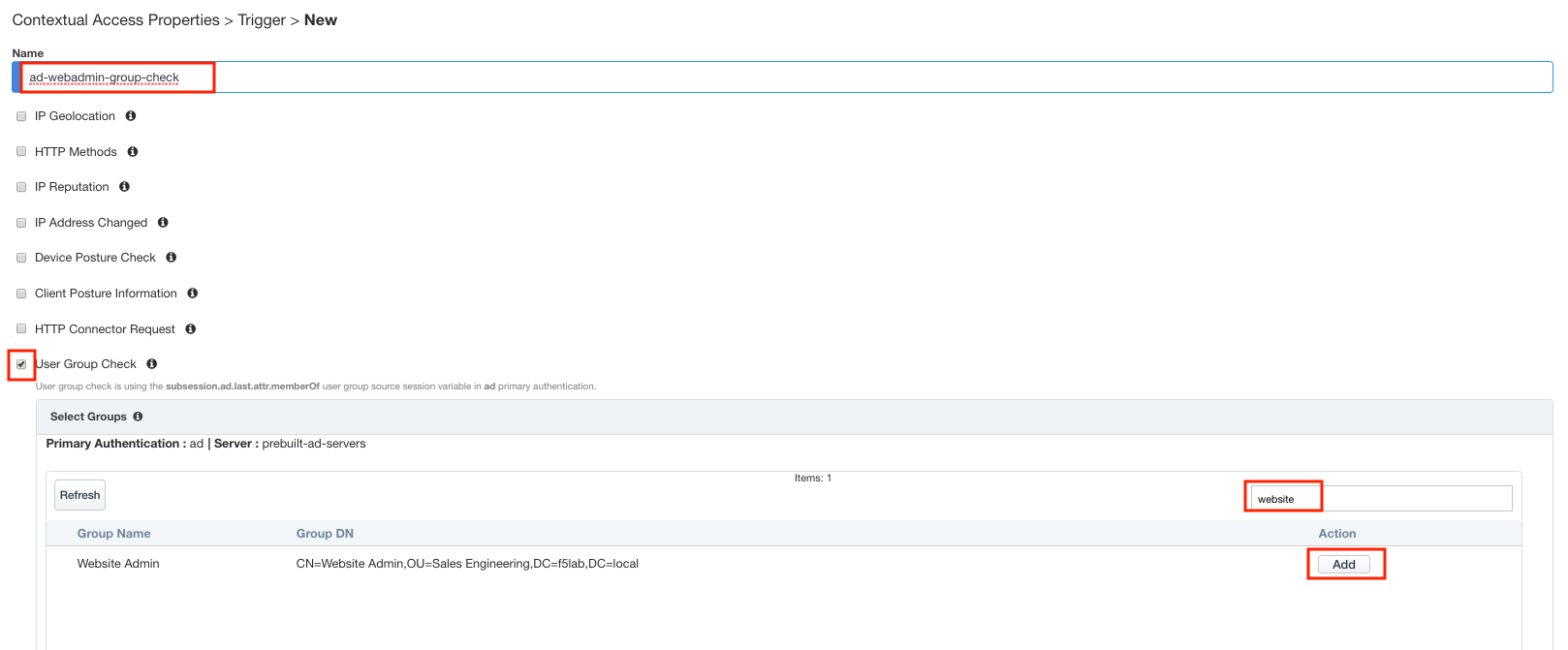
Enter Name webadmin-group
Check User Group Check
Locate the Website Admin group
Tip
Try using the filter field to search
Click Add under the Action column
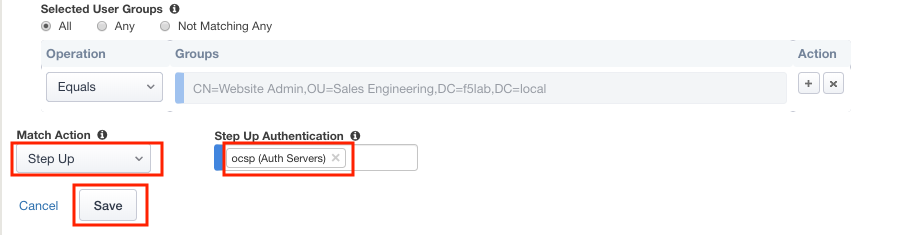
Select Step Up from the Match Action dropdown
Select ocsp from the Step Up Authentication dropdown
Click Save
Click Save again to save the Contextual Access Properties for ocsp-header-iap.acme.com
Click Deploy located under the ribbon. Deployment will take a few moments.