Lab 2.8 - Certificate Update
In this section, you will modify the SSL profile to present an internally signed certificate for the PUA webtop and select a trusted Certificate Authority to validate the user certificates.
Task - Update the SSL Profile
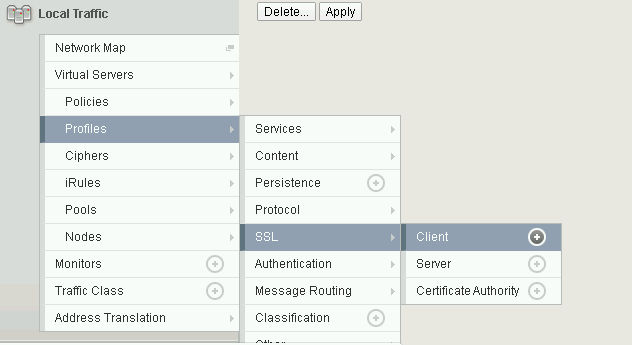
Click Local Traffic >> Profiles >> SSL >> Client
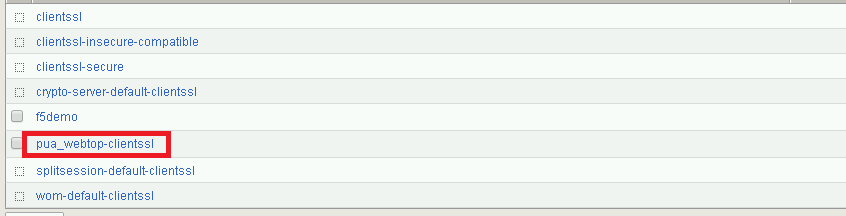
Click pua_webtop-clientssl
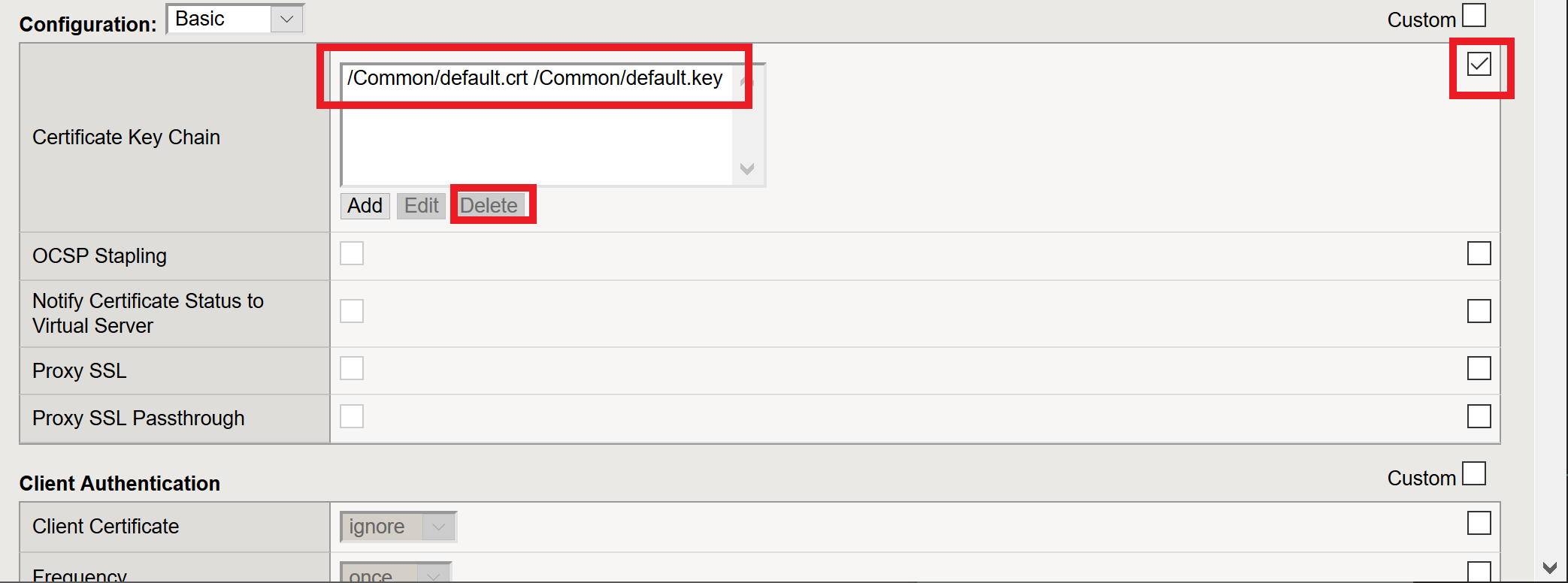
Update the Certificate Key Chain
Check the custom box beside Certificate Key Chain
Highlight the default key chain and click delete
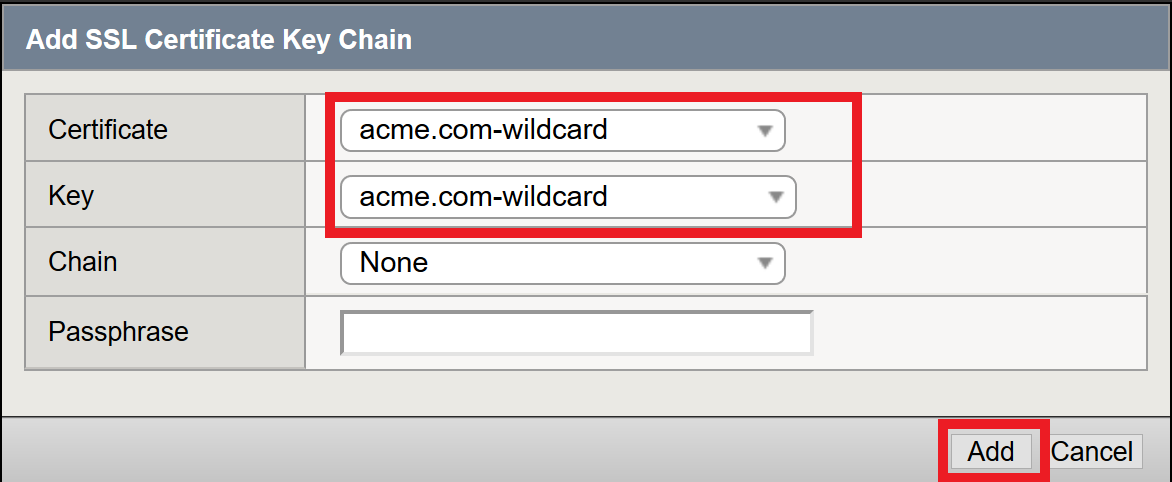
Click ADD

Change the Certificate to acme.com-wildcard.crt
Change the Key to acme.com-wildcard.key
Click ADD
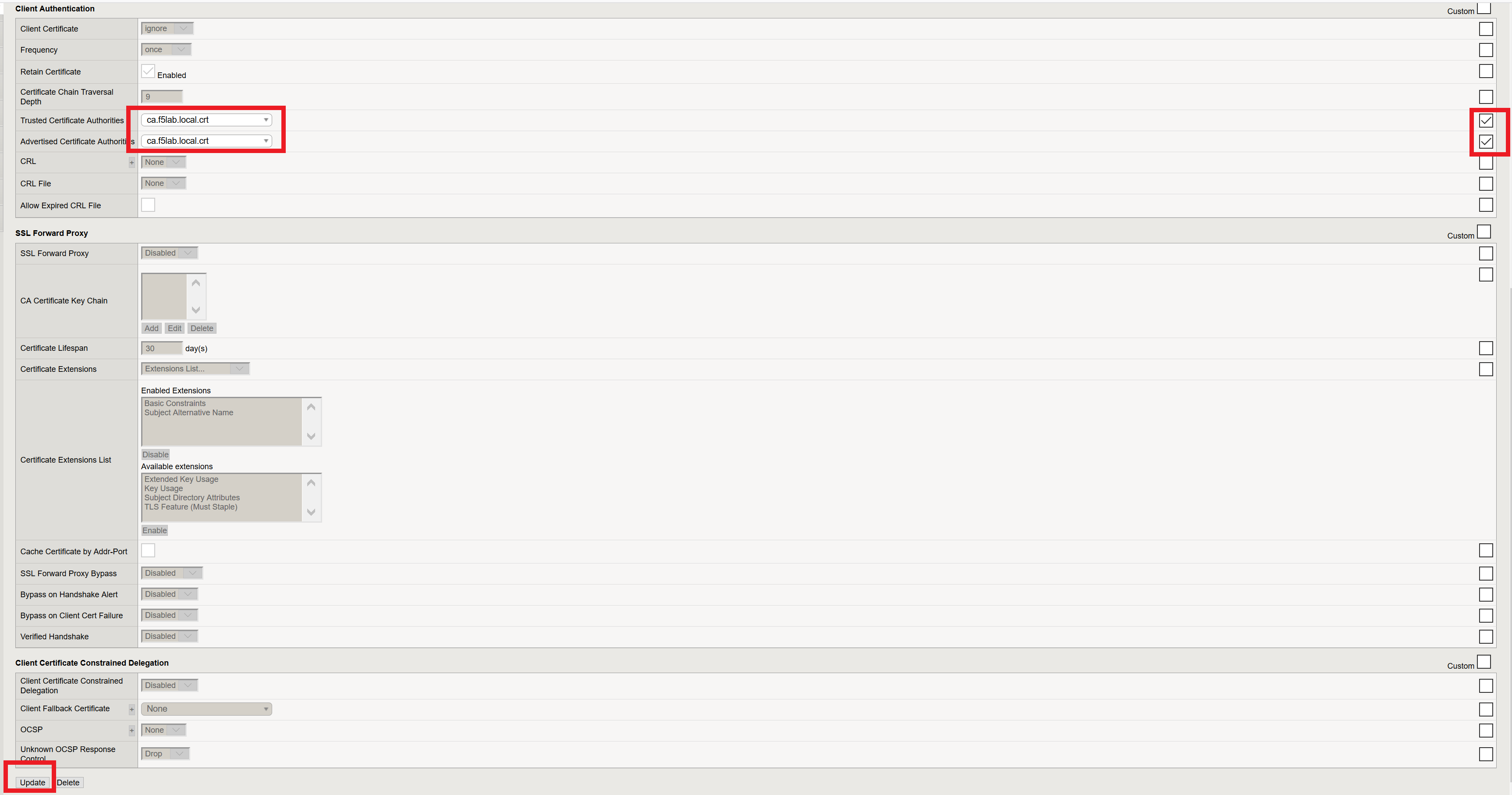
Update the Certificate Authorities
- Change the Trusted Certificate from ca. pua.lab.cer to ca.f5lab.local.crt
- Change the Advertised Certificate from ca. pua.lab.cer to ca.f5lab.local.crt
- Click Update